

Workday – How do I add payroll input?
Updated 2 weeks ago
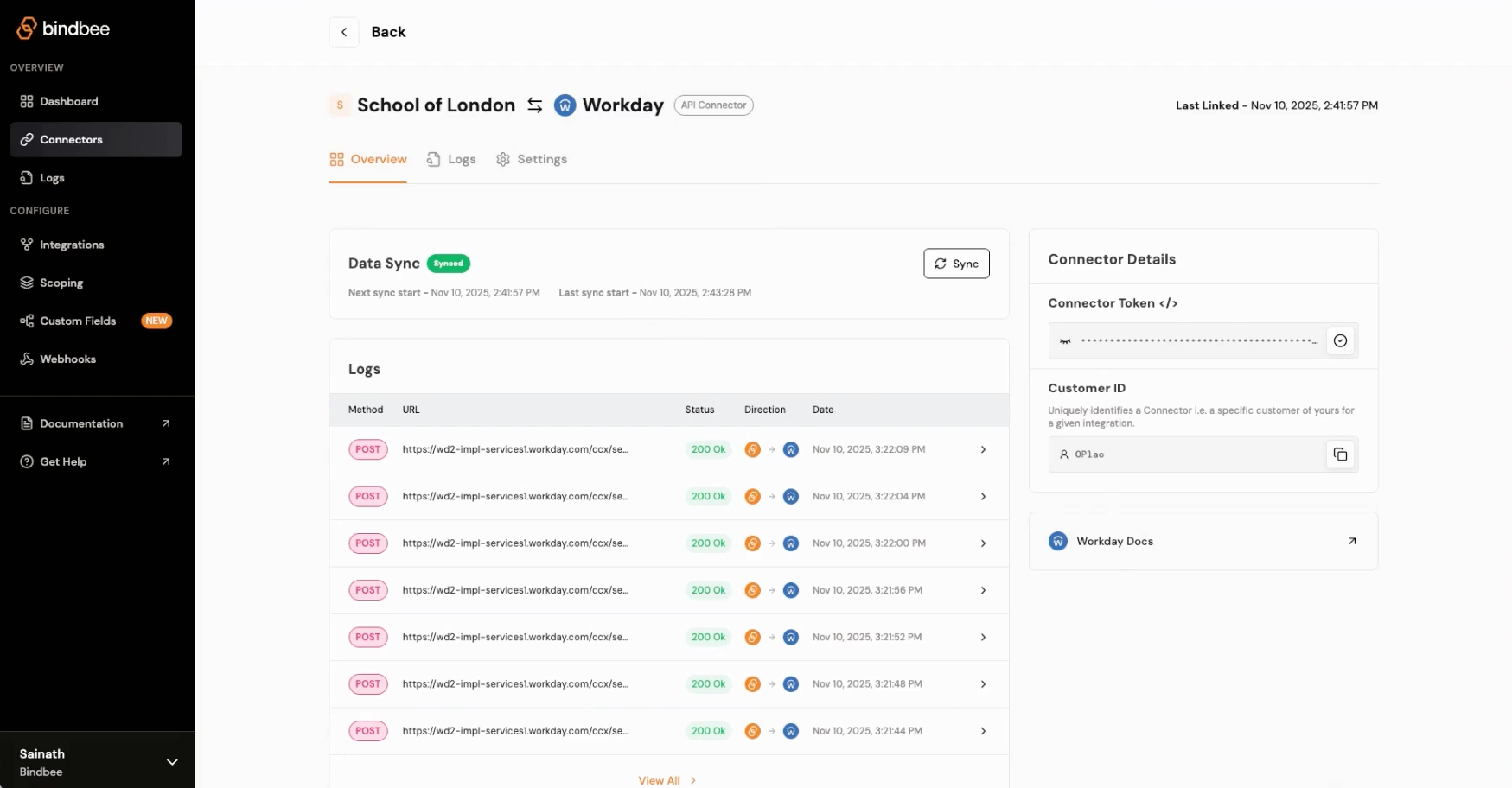
Step 1: Make sure you have an active Workday connector in Bindbee. On your Bindbee Dashboard, copy your connected token.
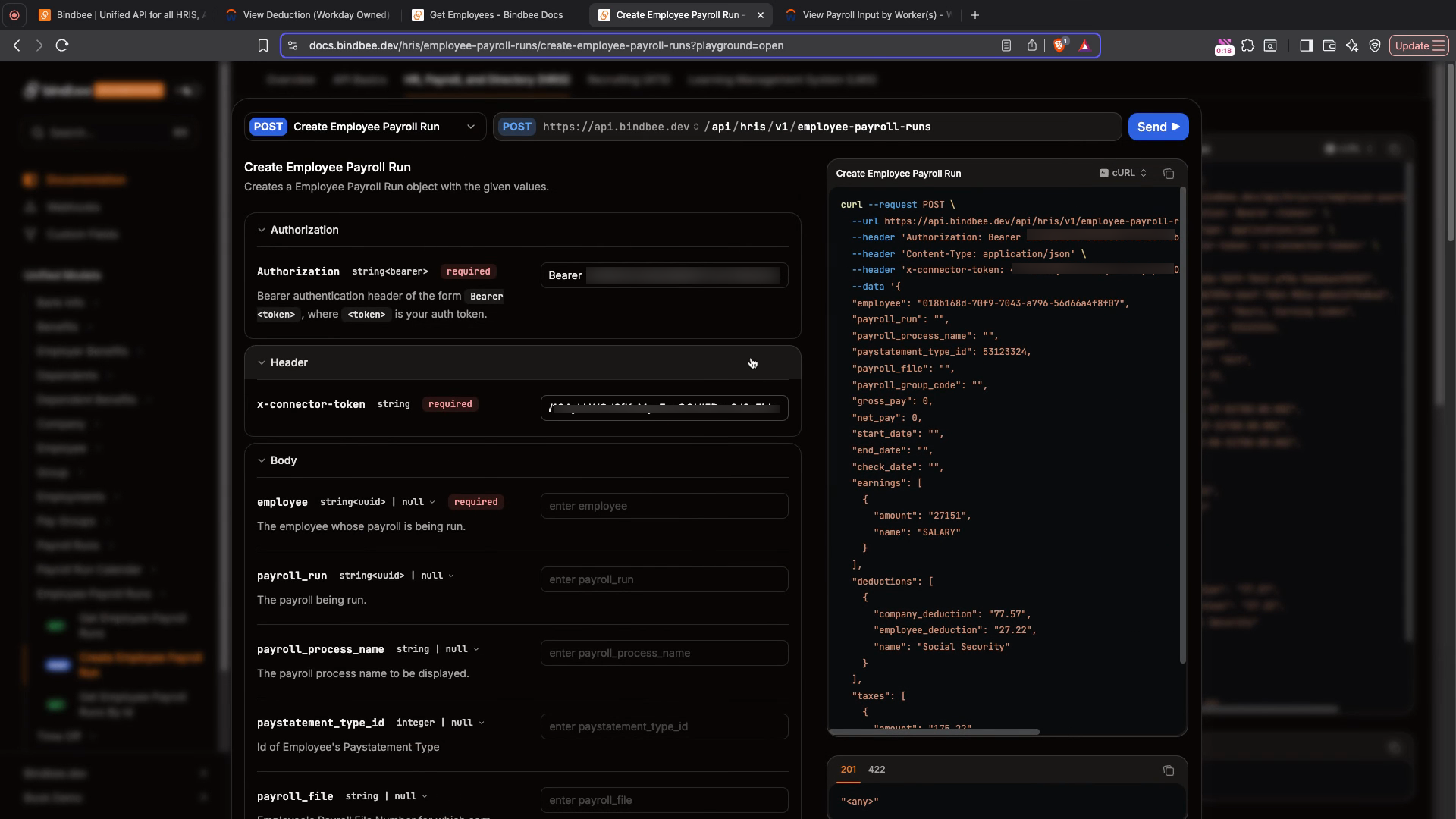
Step 2: Open the Bindbee API documentation to Create Employee Payroll Run. Paste your Bindbee API key and connector token in the x-connector-token Header.
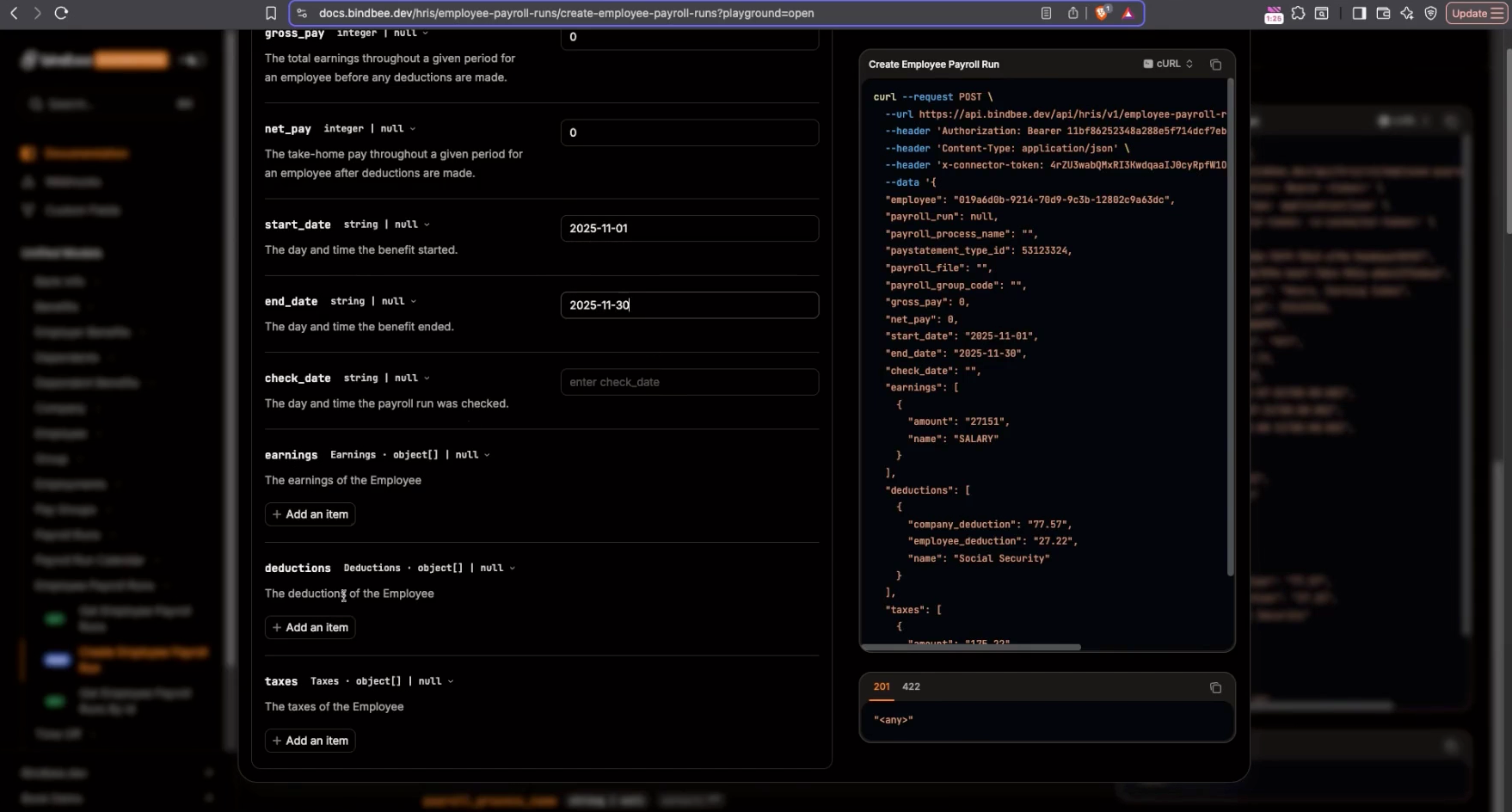
Step 3: Use the Get Employees endpoint to get the ID of the employee you want to add payroll input for and paste it in the employee field of create employee payroll. Leave the payroll run field null, and set the start date and end date as needed. You can add either an earning or a deduction, both follow the same process. To add a deduction, follow the next step.
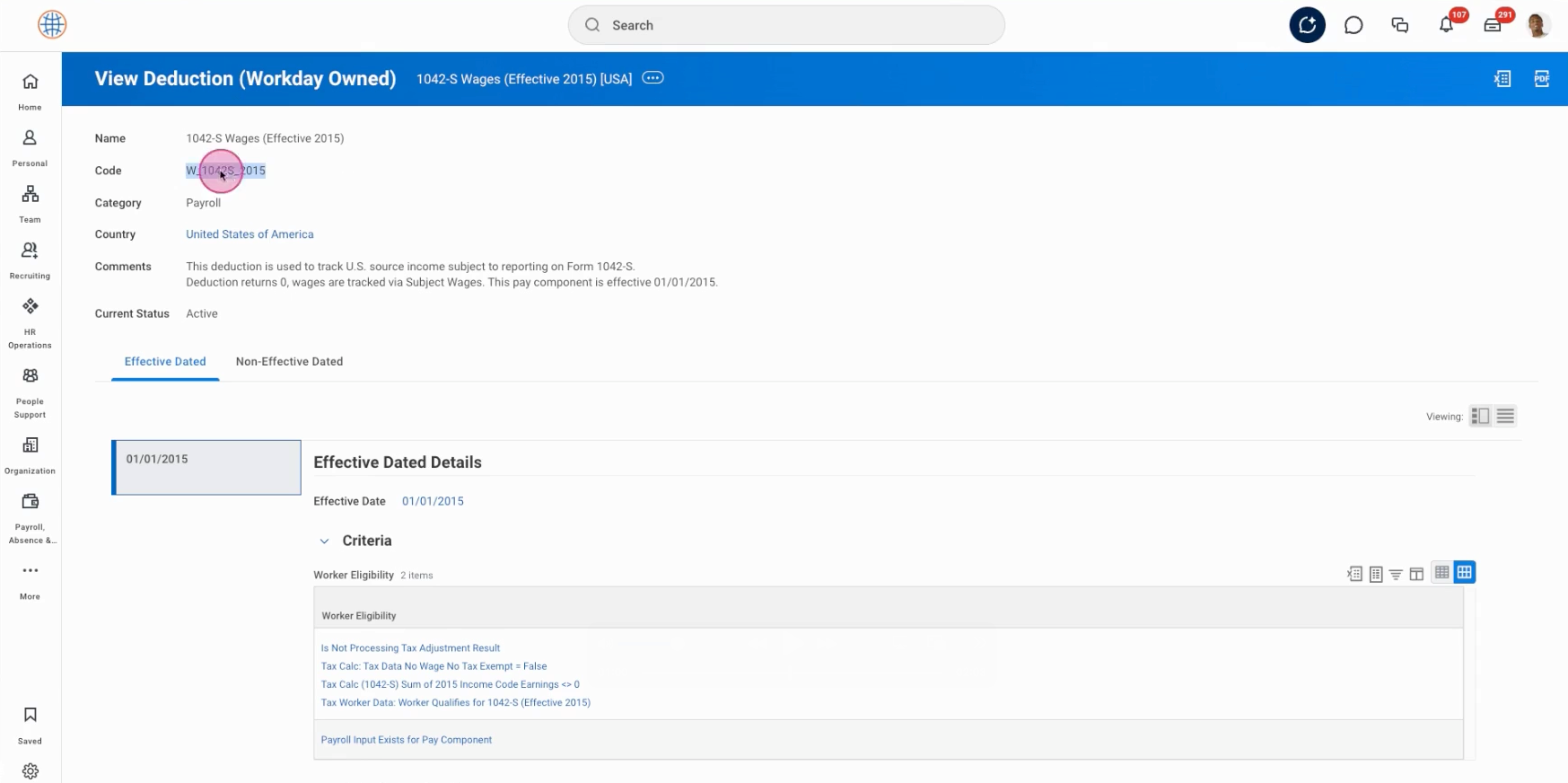
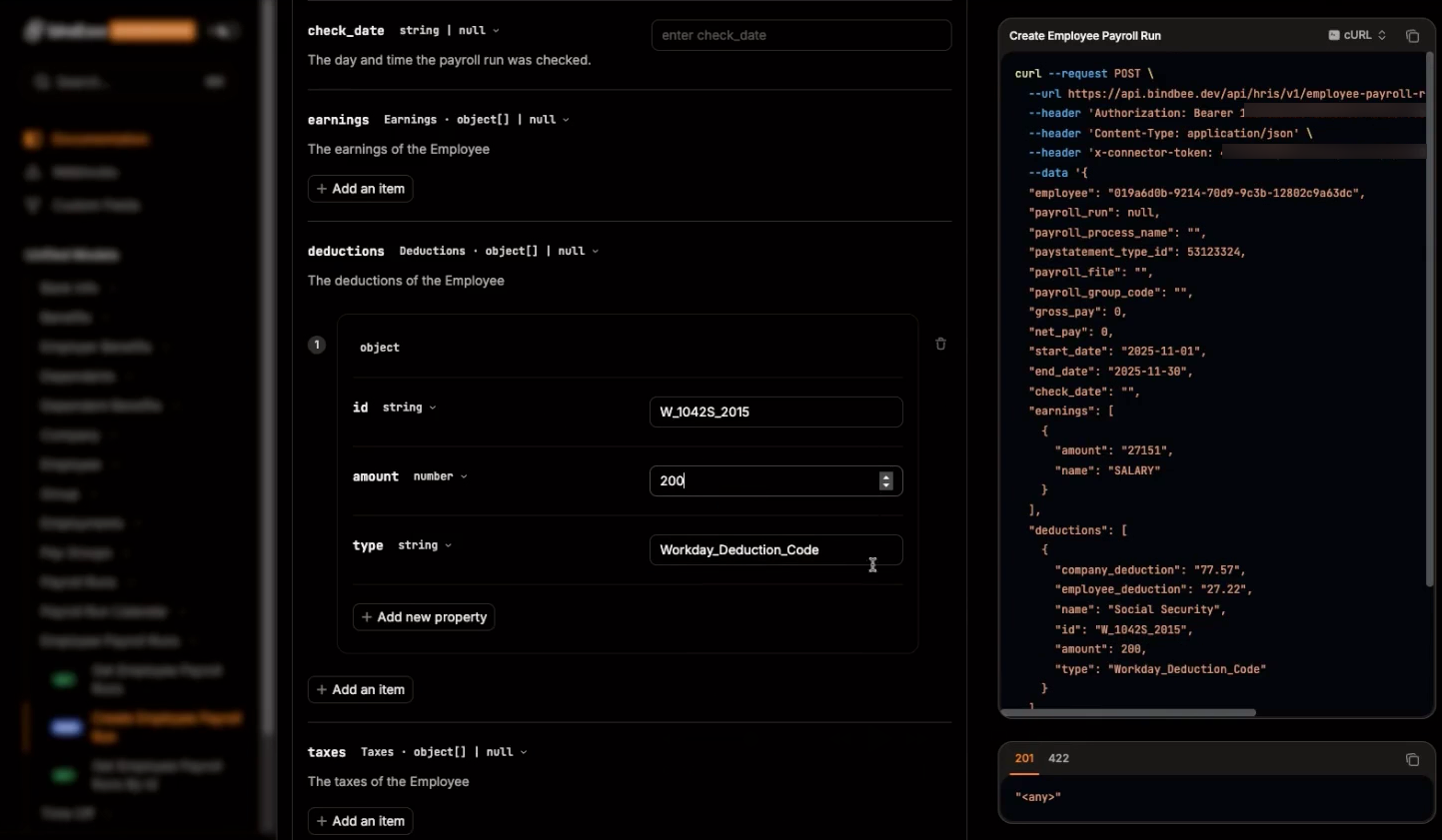
Step 4: Set up the deductions by adding these three items: id, amount, and type (same items are needed if you want to add earnings). For the deduction id, open the Workday portal and find the correct code for your deduction:
Navigate to the specific deduction in Workday and copy the Deduction Code.
Or go to the Integration IDs and tap View IDs to get the Deduction Code or Workday wid.
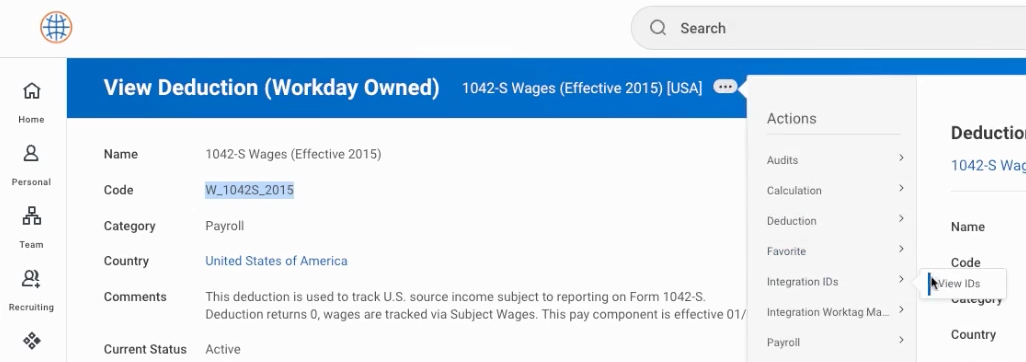
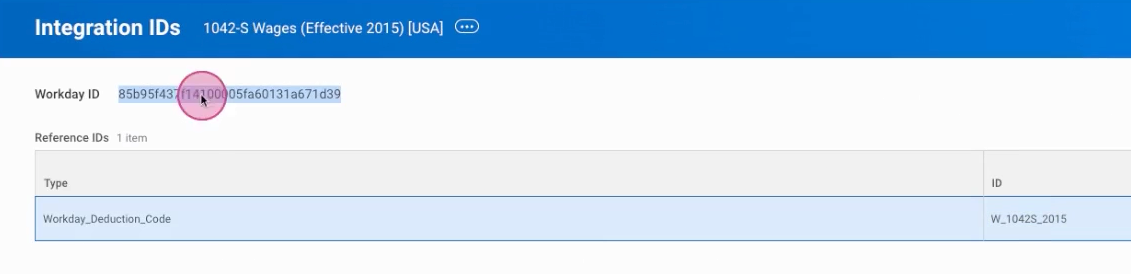
You can use either identifier for the deduction. Paste the id, set the type to Workday_Deduction_Code or WID depending on the selected ID (use Workday_Earning_Code or WID for earnings) and input the amount as a number (e.g., 200).
Step 5: Send the request to create the payroll run. The confirmation screen displays a reference ID, batch_id for your new payroll entry. Note these ids if you want to verify your newly added records in Workday in the next steps.
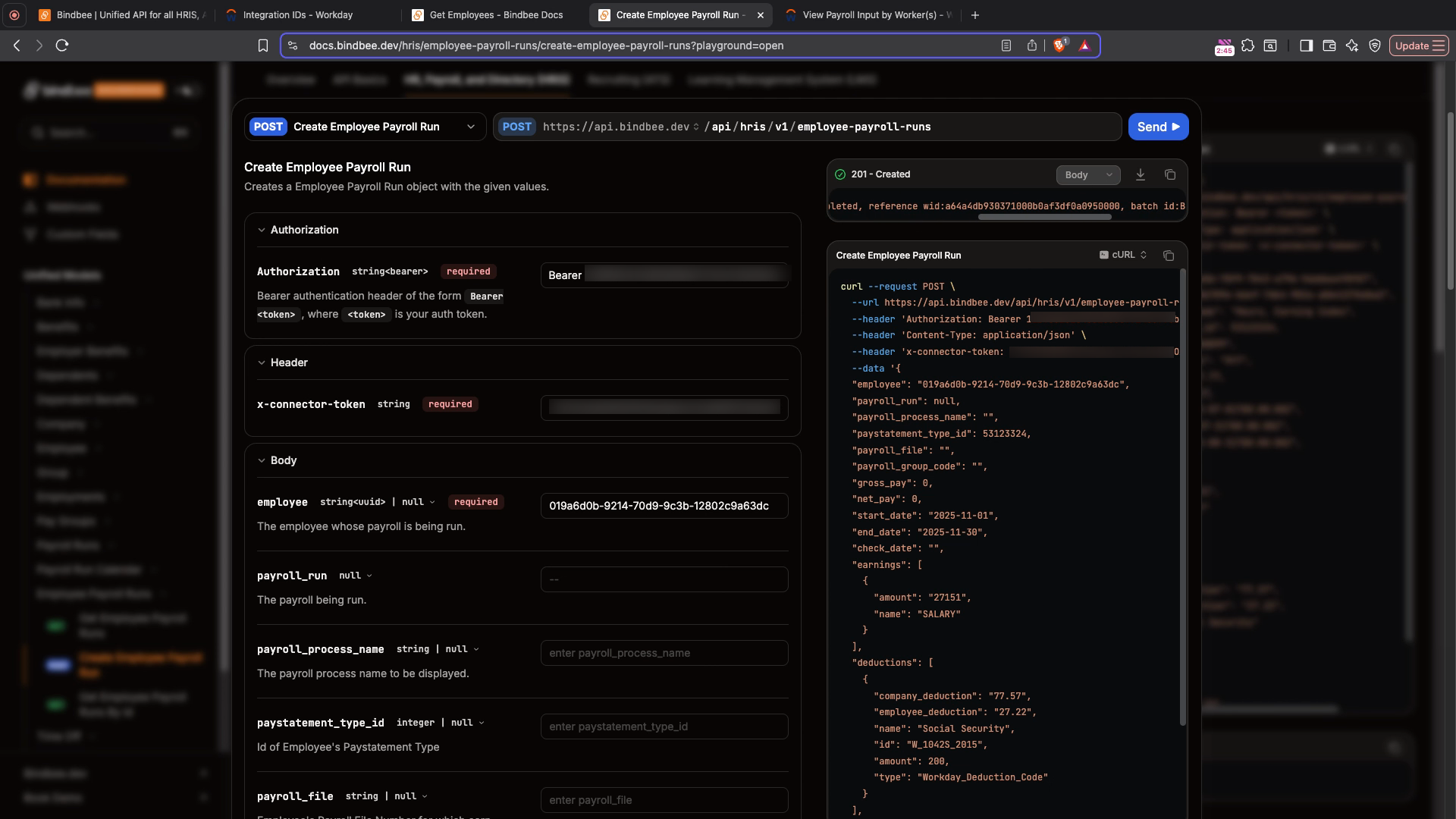
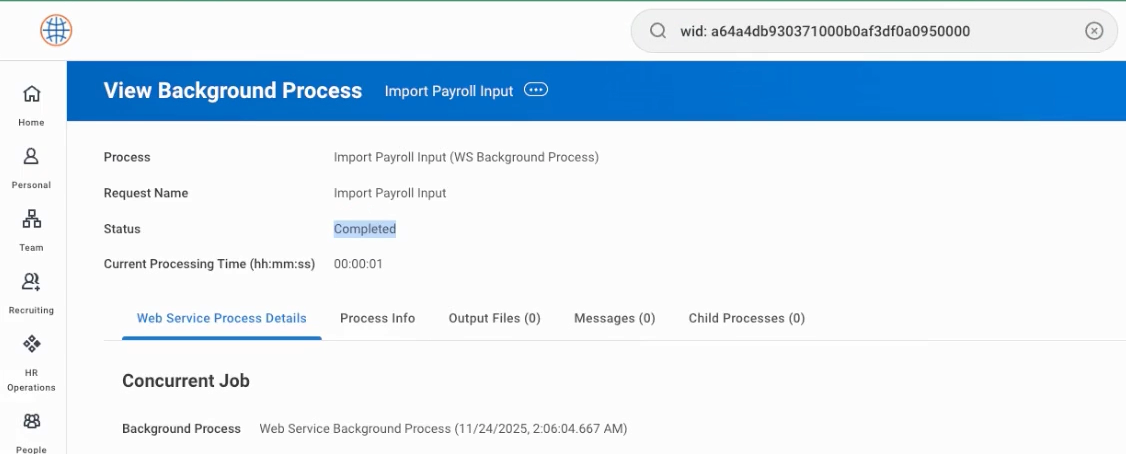
Step 6: To verify the Payroll input Background process status in workday, go to workday portal and search for wid:{reference_id} (replace the reference_id with the one you've got in the earlier response). You should see the Status as Completed.
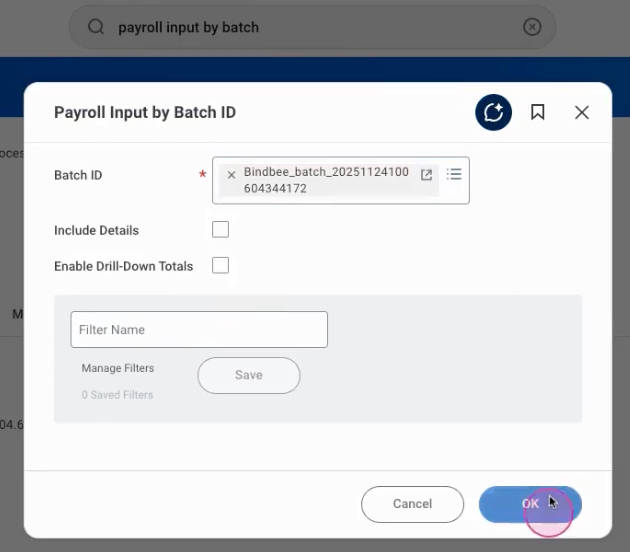
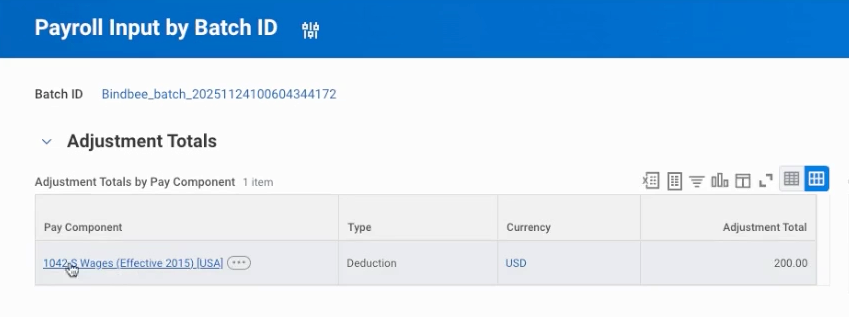
Step 7: To verify the added Payroll input batch in workday, go to workday portal and search for Payroll Input by Batch. Enter the Batch ID from the earlier response and click OK. You can verify the newly added payroll input.
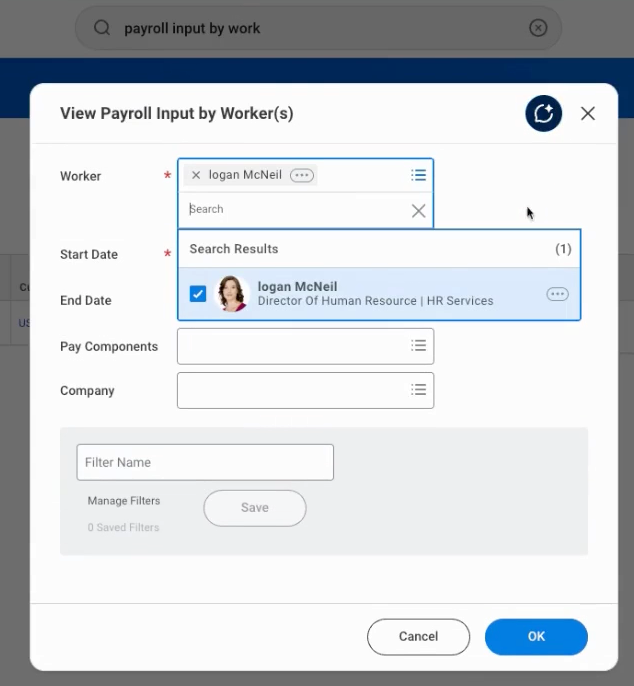
Step 8: To verify the added Payroll input by worker in workday, go to workday portal and search for View Payroll Input by Worker. Enter the employee number or name to search for the worker and click OK. You can verify the newly added payroll input.
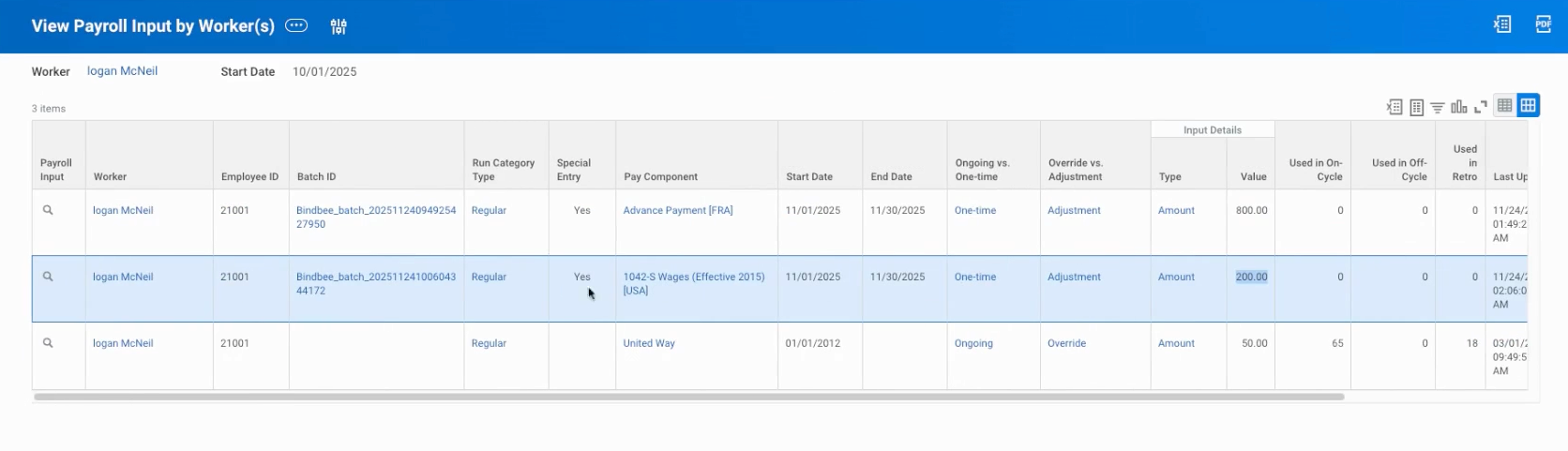
That’s it! You’ve followed the full workflow to add a payroll input for an employee in Workday.