
Paylocity – How do I connect via API?
Updated 2 weeks ago
This guide provides a step-by-step process on integrating Paylocity with Bindbee.
Step 1: Navigate to the magic link and select Allow and Contain.
Step 2: Locate your company ID on your Paylocity dashboard. It's in the upper left corner.
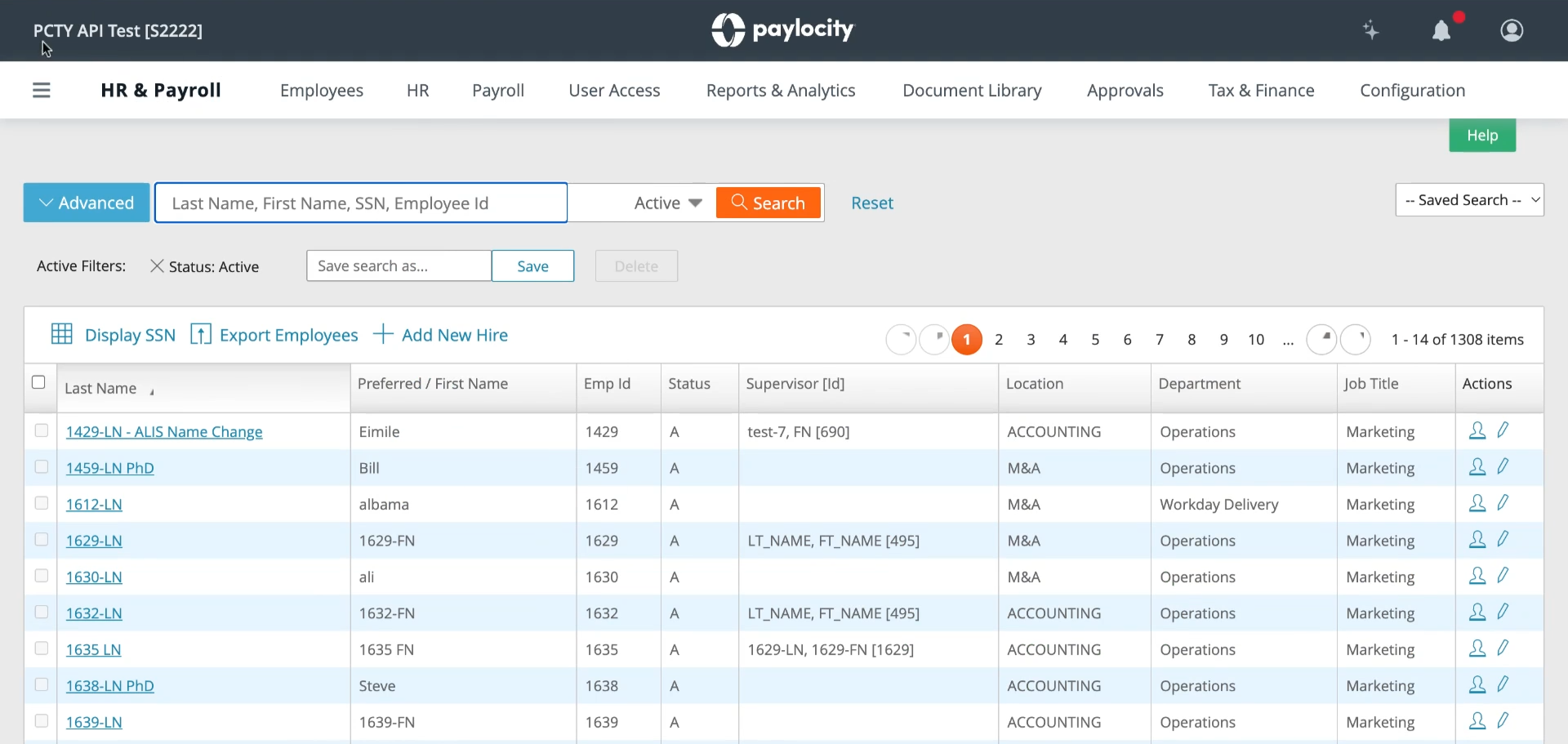
Note: The ID within the brackets is your company ID.
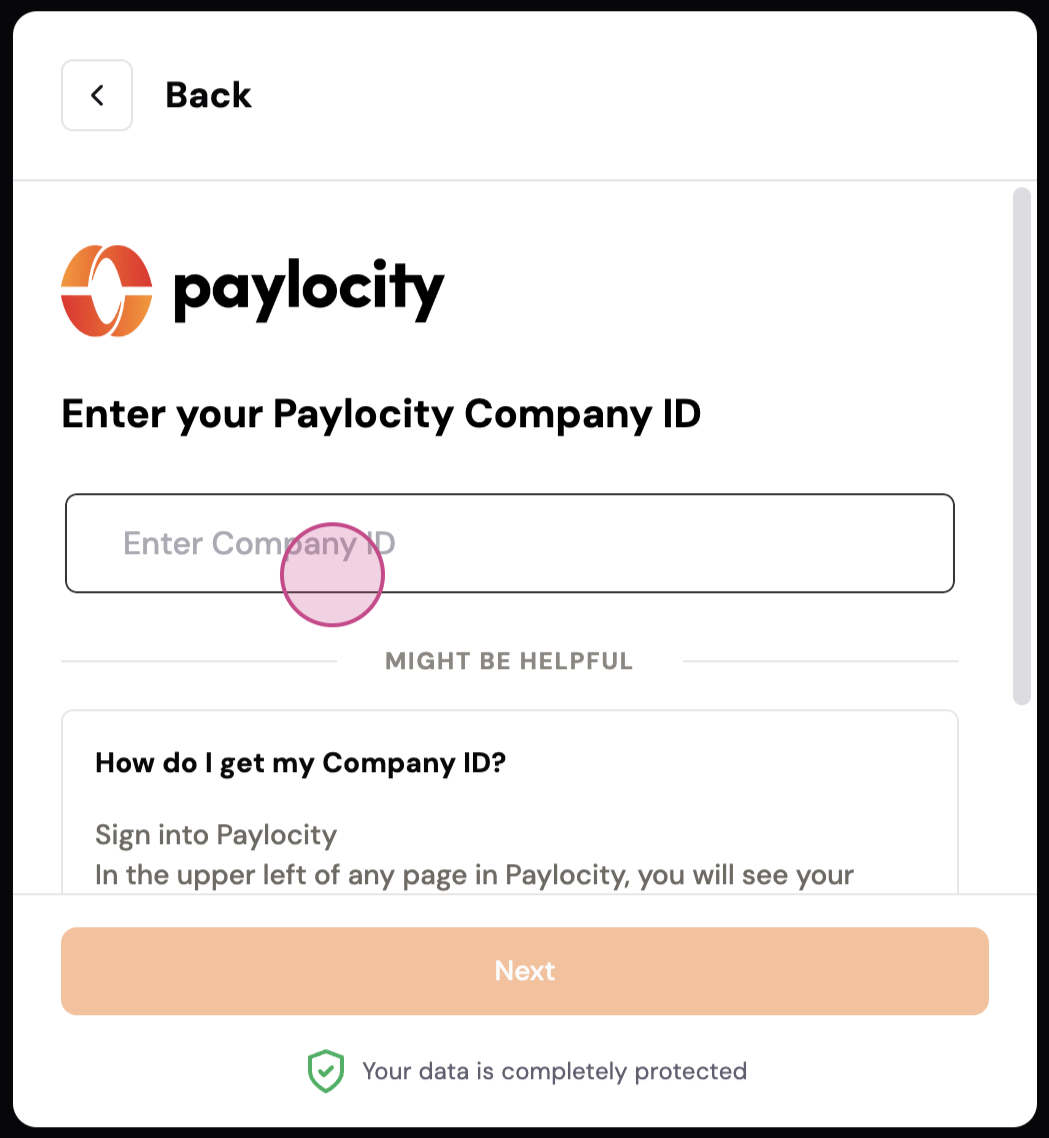
Step 3: Input your company ID into Bindbee.
Step 4: Obtain the Client ID and Client Secret for API access. To do this, fill out a Paylocity Web Services Access Request Form.
When filling in the form:
- The Client Contact Information should contain your company's details (for example, your HR personnel)
- The Vendor / Third-Party Contact Information should contain information for the company you're connecting to
- Under "Briefly describe use case," write "we're using Bindbee to connect."
- Ignore the "Webhook Push Notifications" section
For Permissions, select the bare minimum requirement.
If you need payroll related data or full integration:
Complete the provided form and email it to [email protected].
The email body should contain the following:
Subject: Requesting Client ID and Client SecretHi Paylocity team, can we get access to a Client ID and Client Secret for API access? (https://www.paylocity.com/our-products/integrations/api-library/ ) We have attached the form specifying relevant permissions.
Note: There may be a cost associated with the API setup & gathering of credentials from Paylocity.
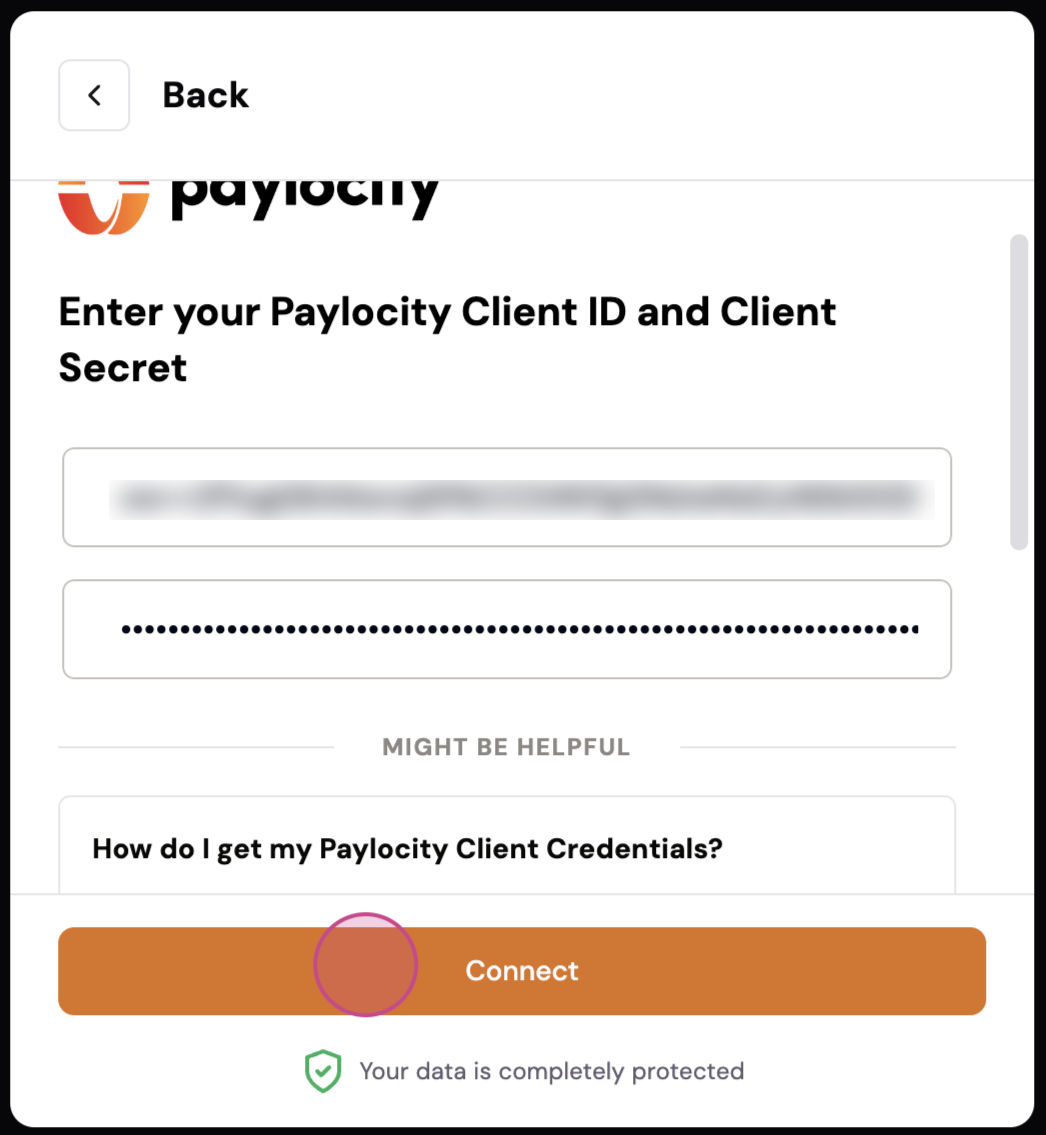
Step 6: Paylocity will provide you with your Client ID and Client Secret. Enter your client ID and client secret.
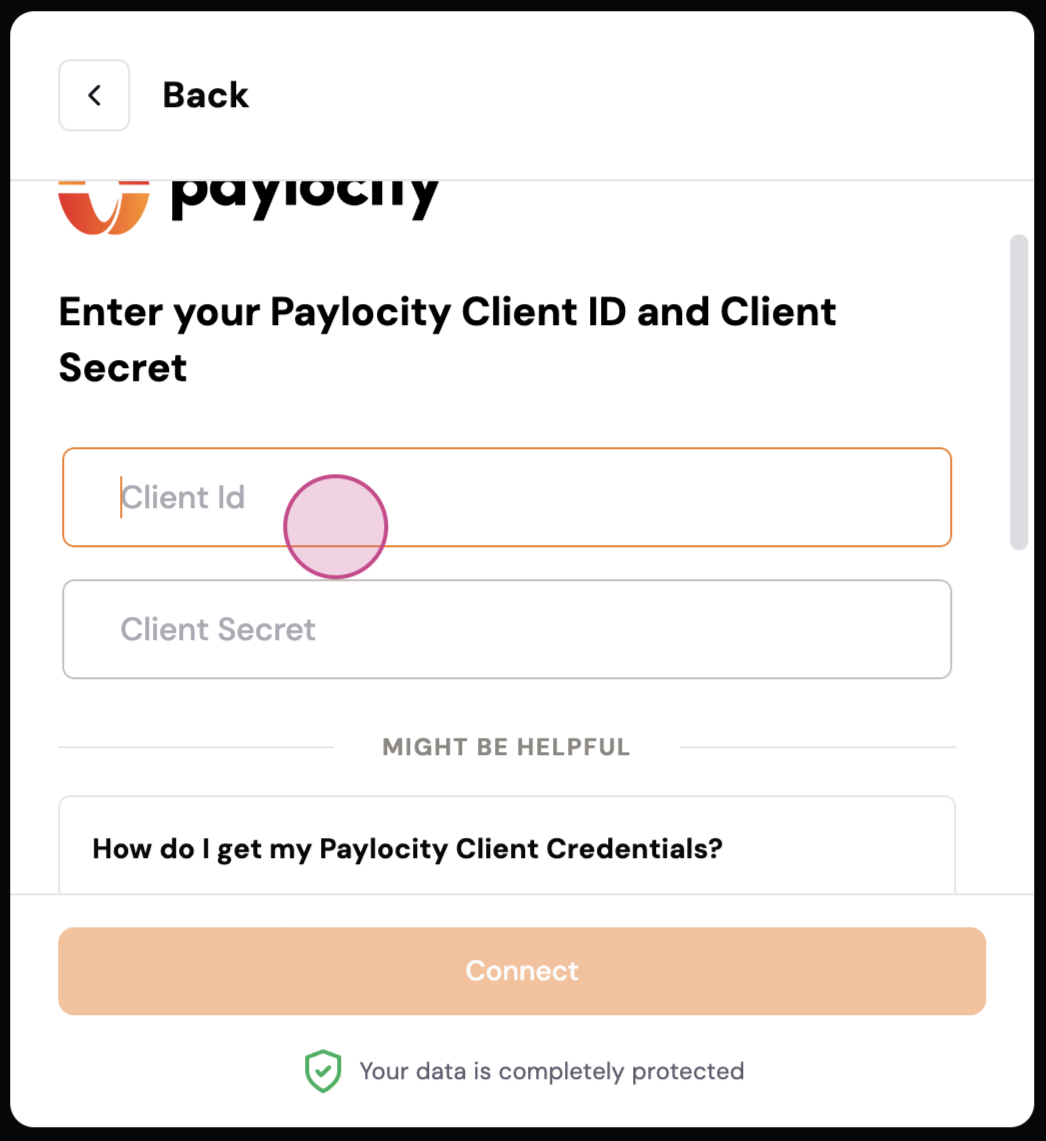
Step 7: Click on Continue.
Upon completing these steps, you'll see that the connection is successfully established.