

Oracle HCM – How do I connect my account?
Updated 2 weeks ago
This guide provides a step-by-step process to retrieve the credentials for your Oracle HCM account.
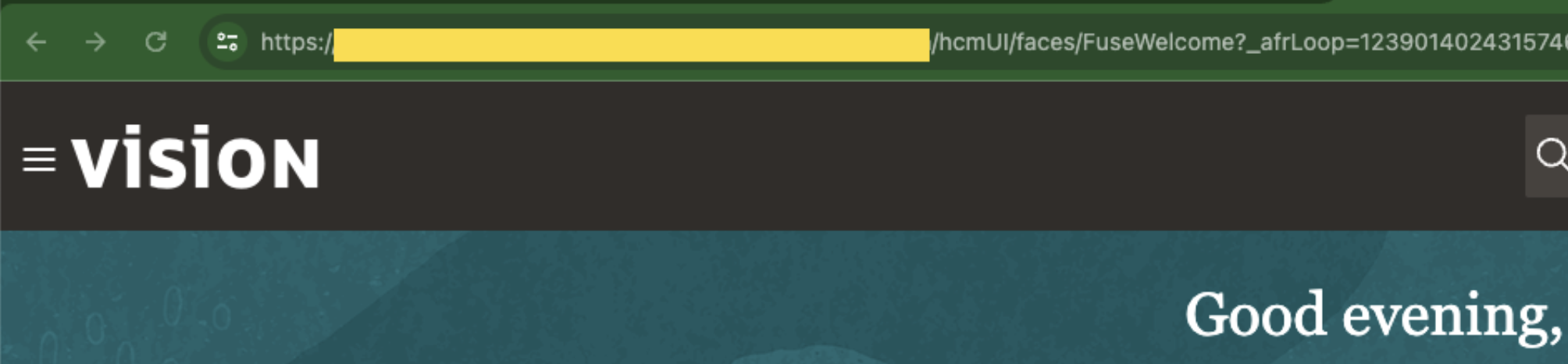
Finding Your Oracle HCM Cloud Address
Sign in to your Oracle HCM Cloud instance.
Copy the URL from "https://" up to the first "/", then paste it into the connection setup.
Permissions
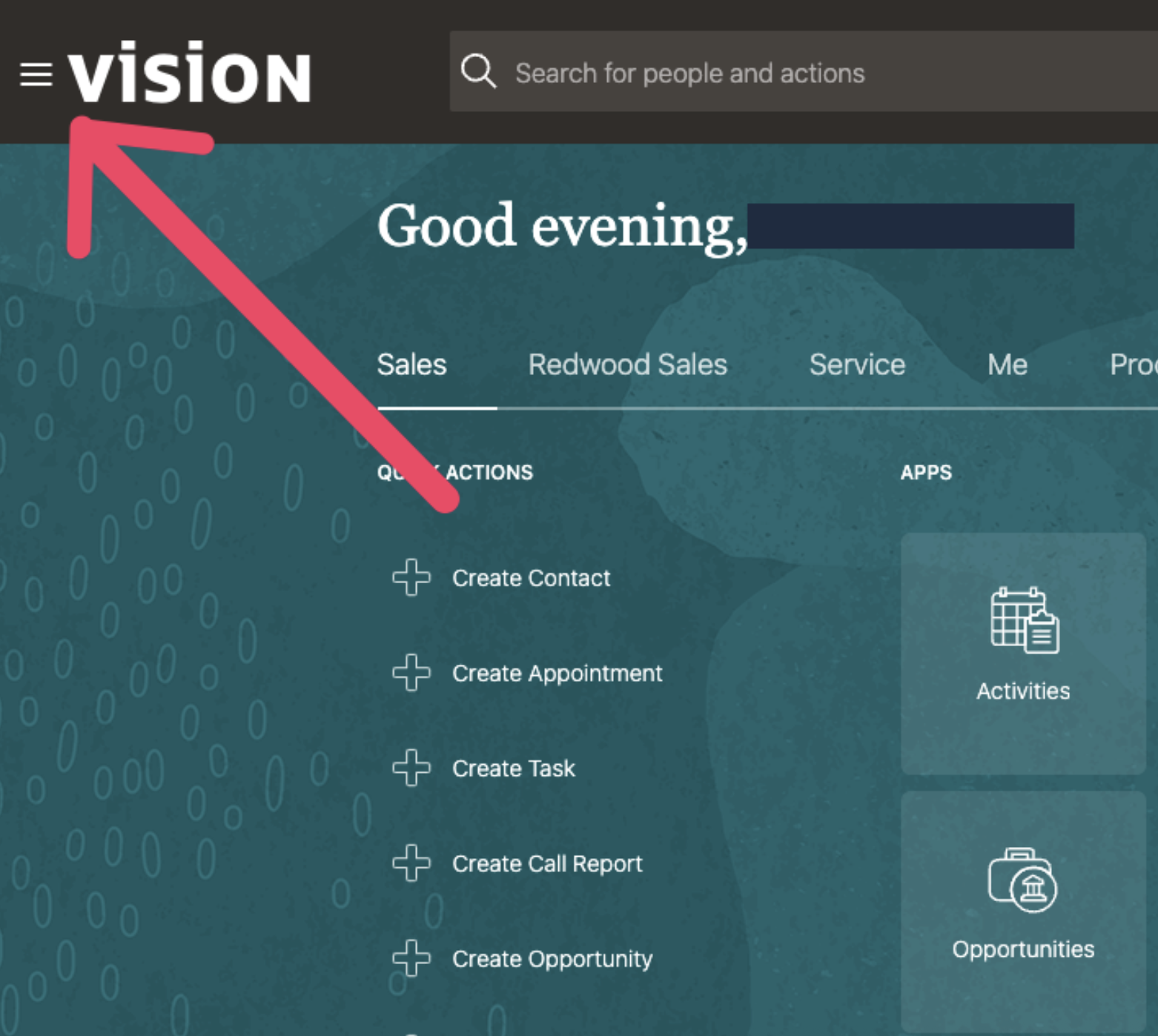
Click on the menu in the top-left corner of your Oracle HCM Cloud instance.
Navigate to "Tools", expand the menu, and select "Security Console".
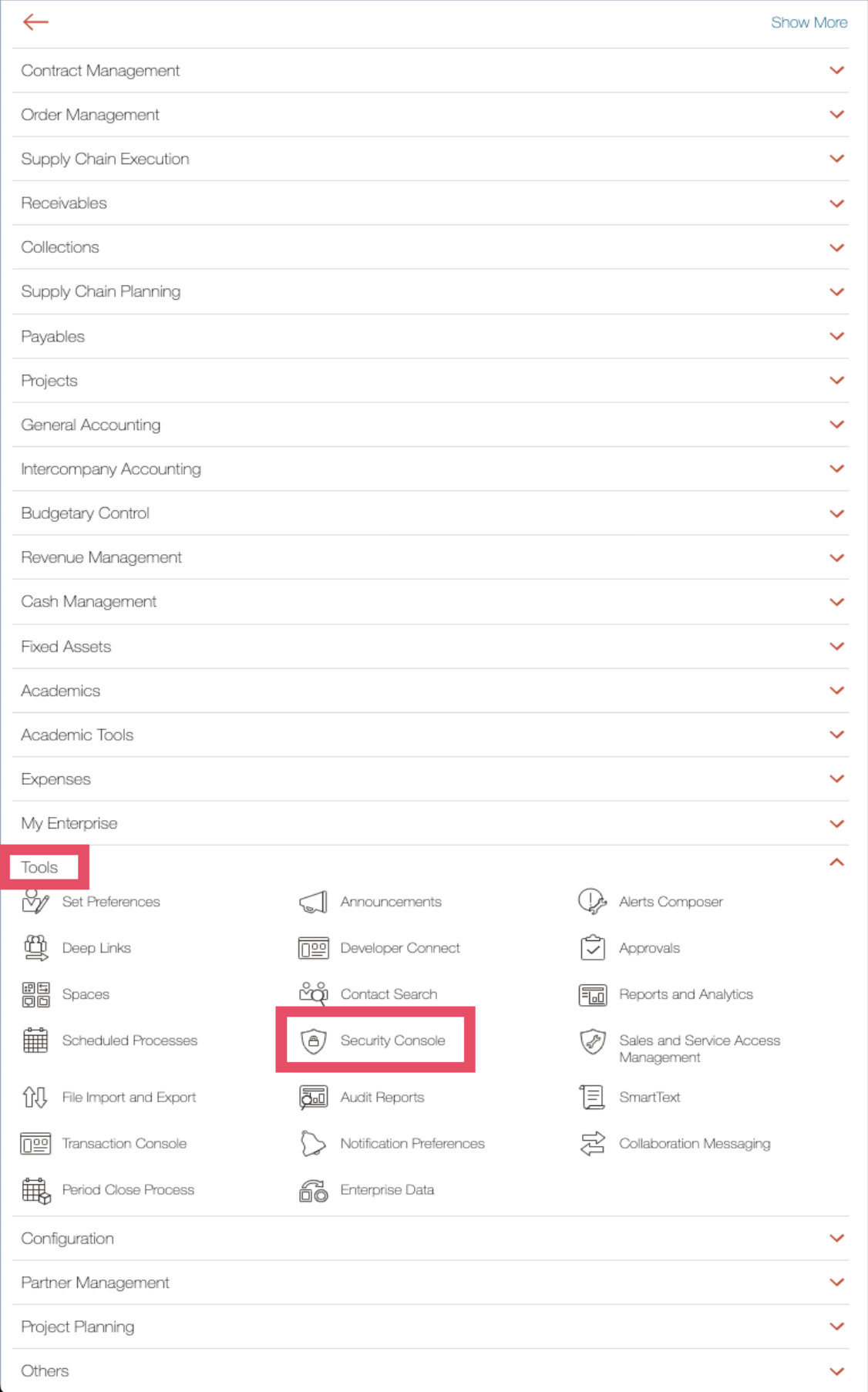
Note: If you don’t see the "Security Console" option, your account lacks the necessary permissions to proceed.
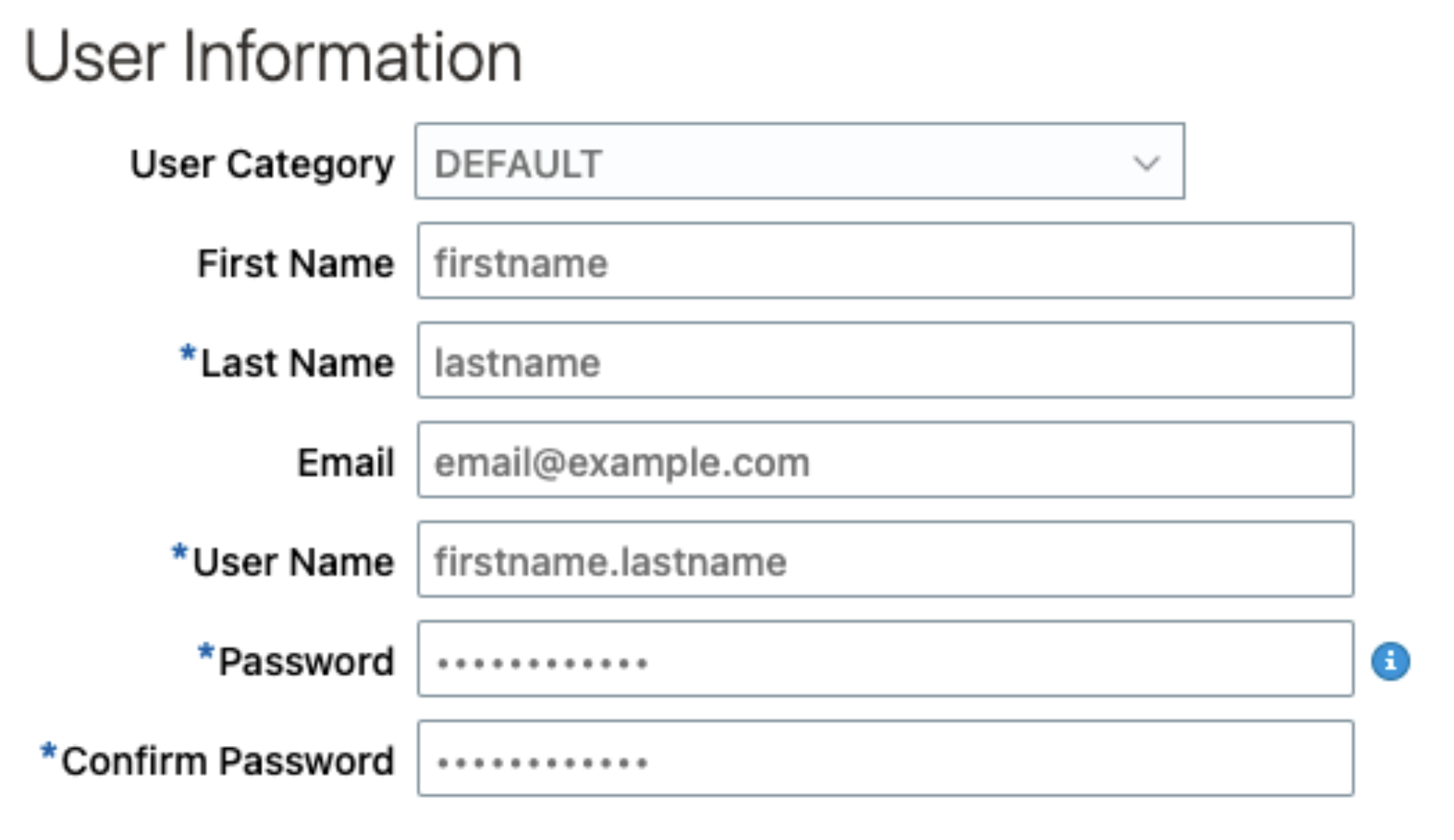
Go to "Users" and select "Add User Account".
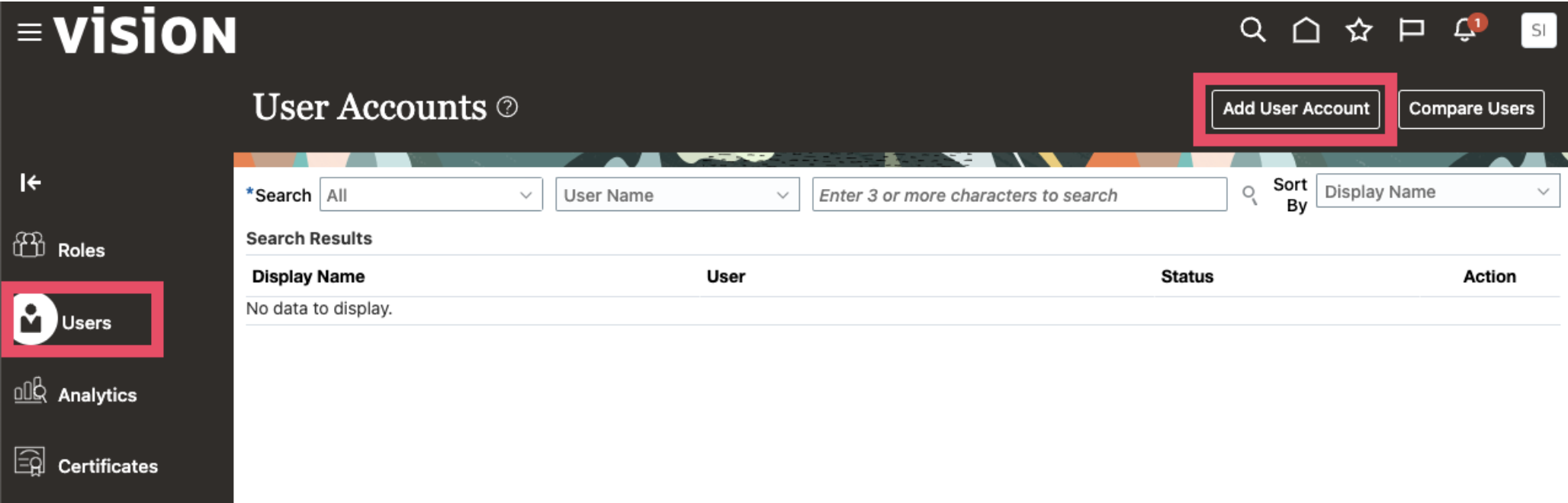
Enter the required details and make sure to save the Username and Password for later use.
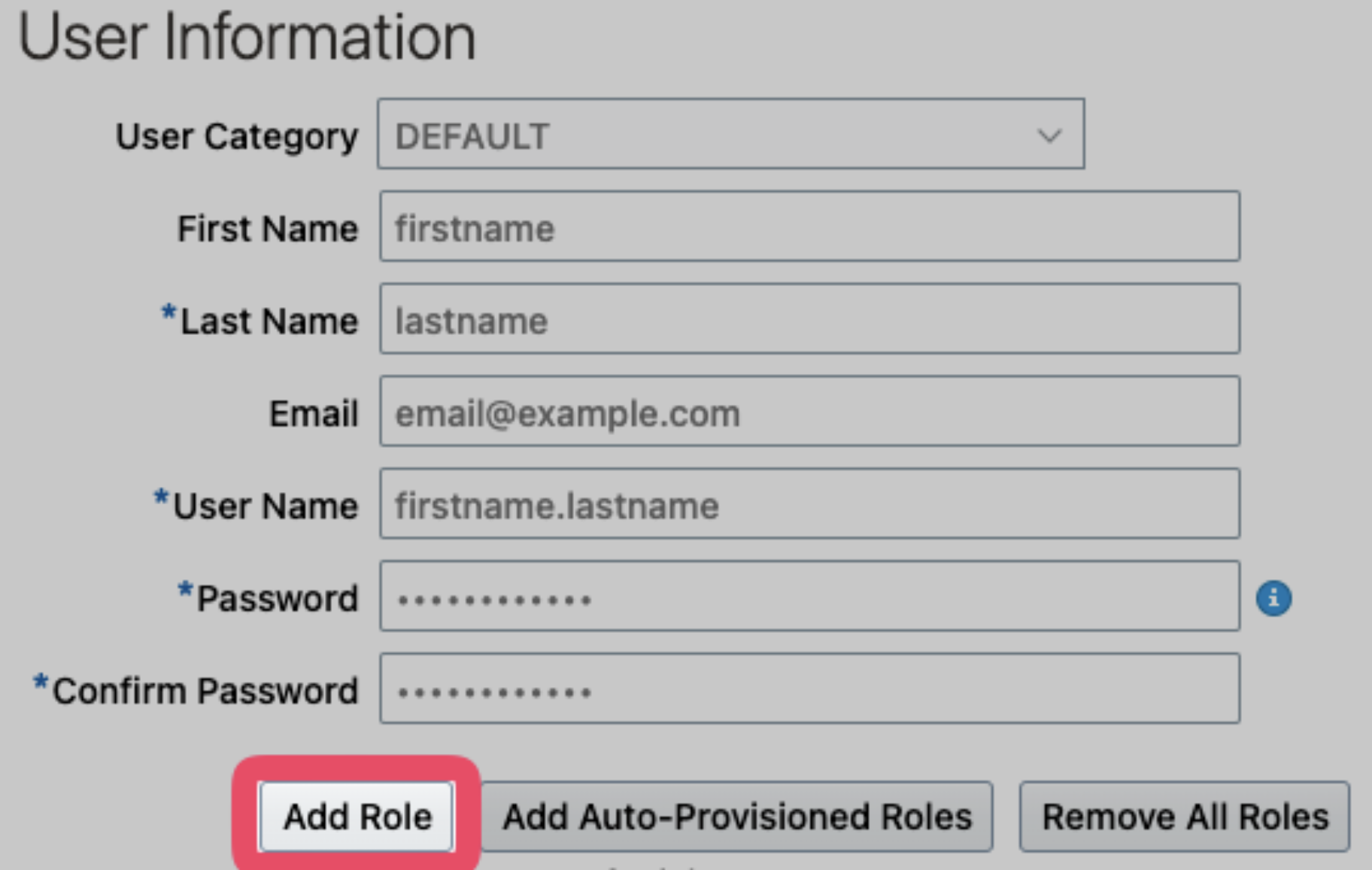
Click on "Add Role".
For each required role:
Search for the role.
Select the role.
Add the role.
Ensure all necessary roles are assigned before proceeding.
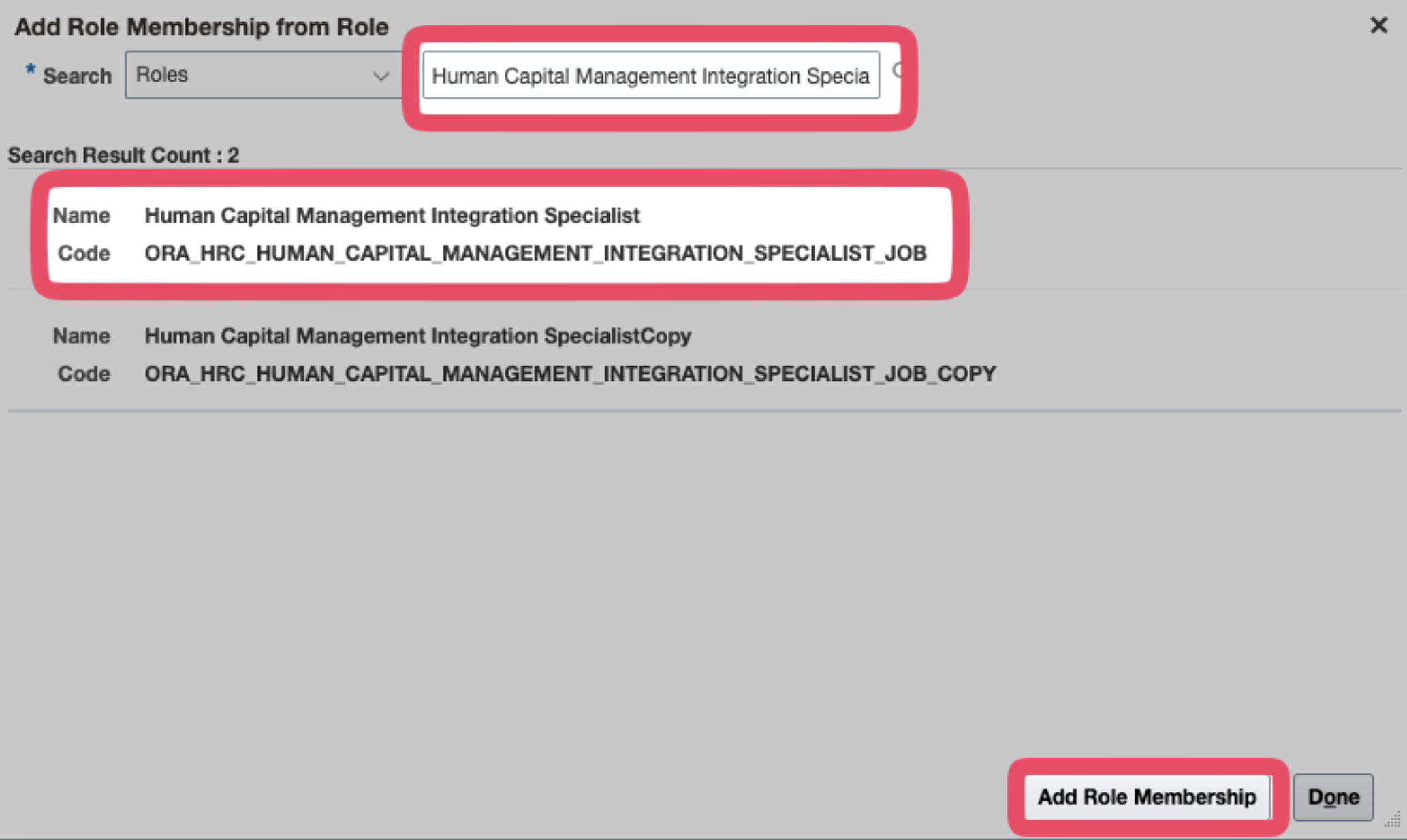
Note: The interface may vary depending on your setup. Make sure that the following permission is added:
“ORA_HRC_HUMAN_CAPITAL_MANAGEMENT_INTEGRATION_SPECIALIST_JOB”
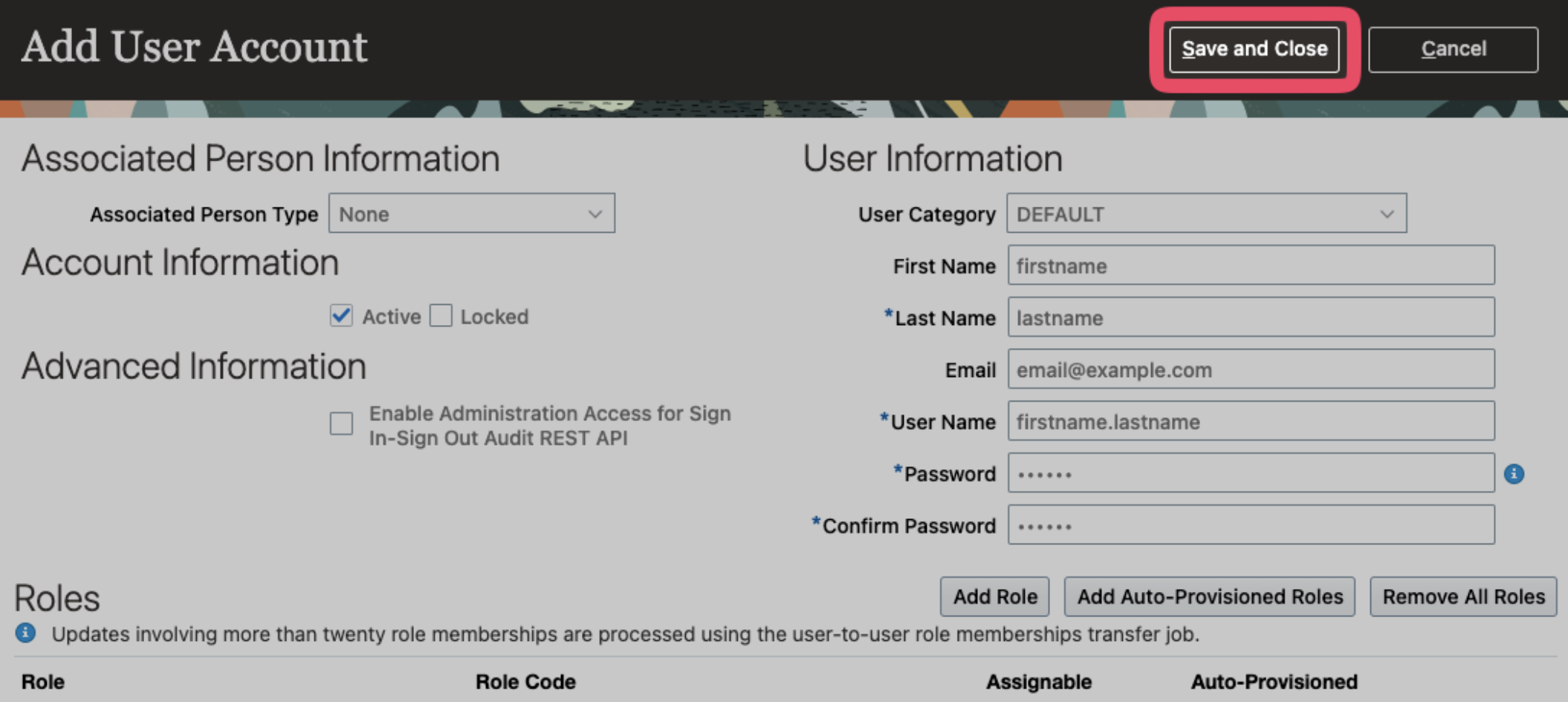
After adding all roles, click "Save and Close".
Credentials Summary
Here's a checklist of all the credentials you've gathered (keep these handy!):
✅ Oracle HCM Server URL
✅ User Name
✅ Password
If you encounter any issues or have any questions during the process, please feel free to contact us at [email protected]. We're here to ensure a seamless setup experience.