

Greenhouse – How do I move connectors to Harvest v3 OAuth?
Updated 2 weeks ago
Please follow the steps below to generate the Client ID and Client Secret required to connect Greenhouse with Bindbee.
Prerequisite: You need admin access to your Greenhouse account to complete this setup.
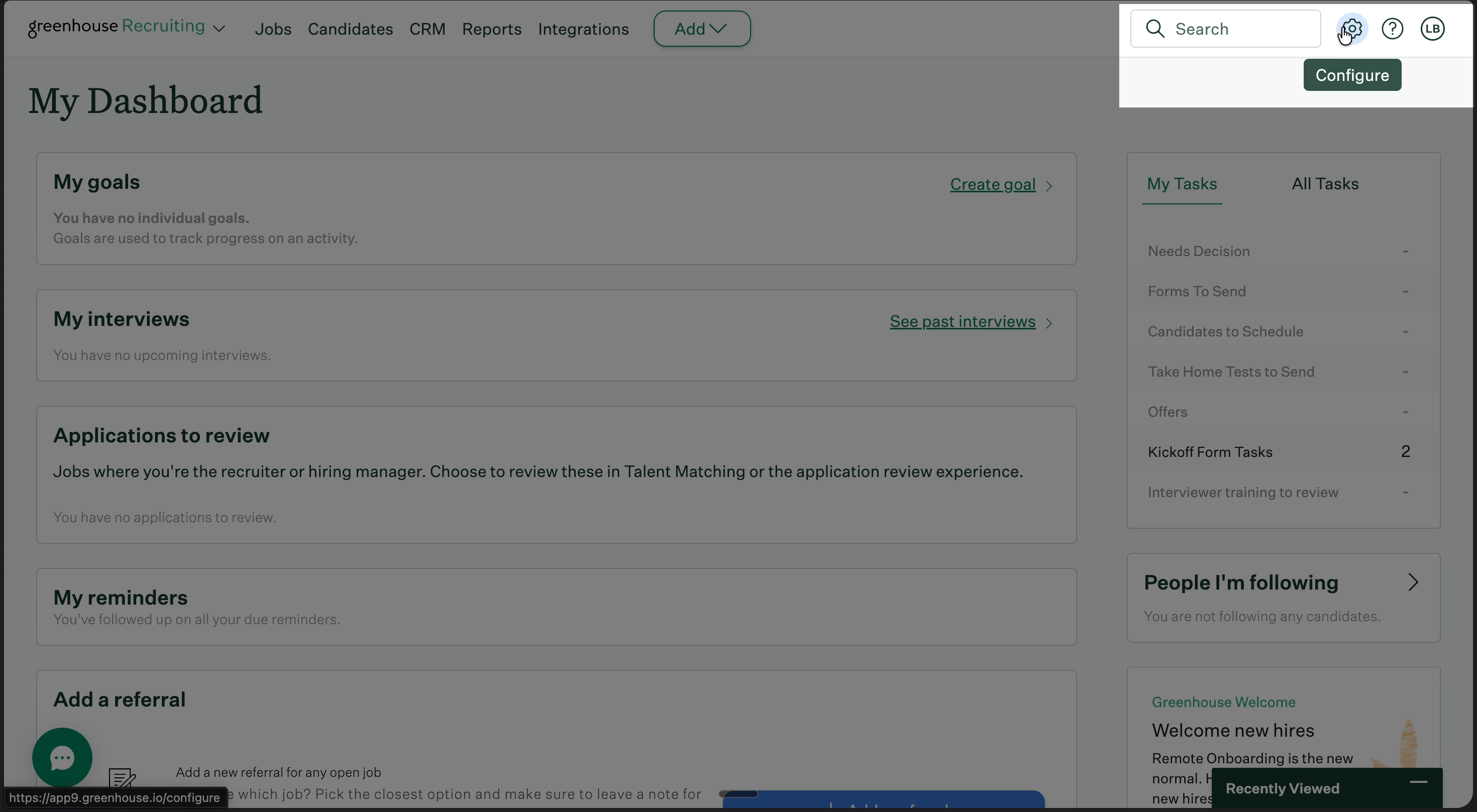
Step 1: Open Settings / Configure
Log in to your Greenhouse tenant and head over to Settings / Configure.
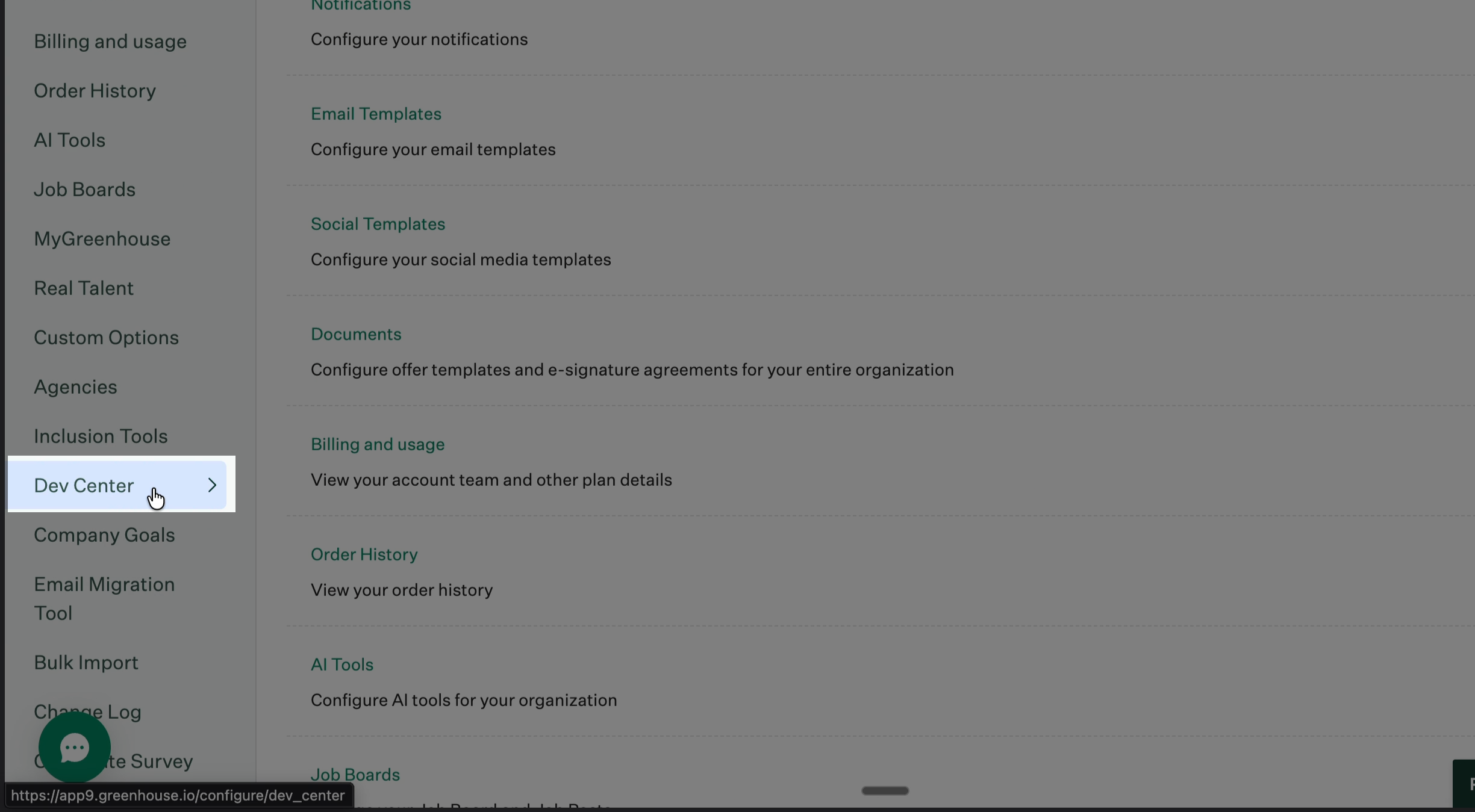
Step 2: Open Dev Center
From the navigation menu, scroll down and select Dev Center.
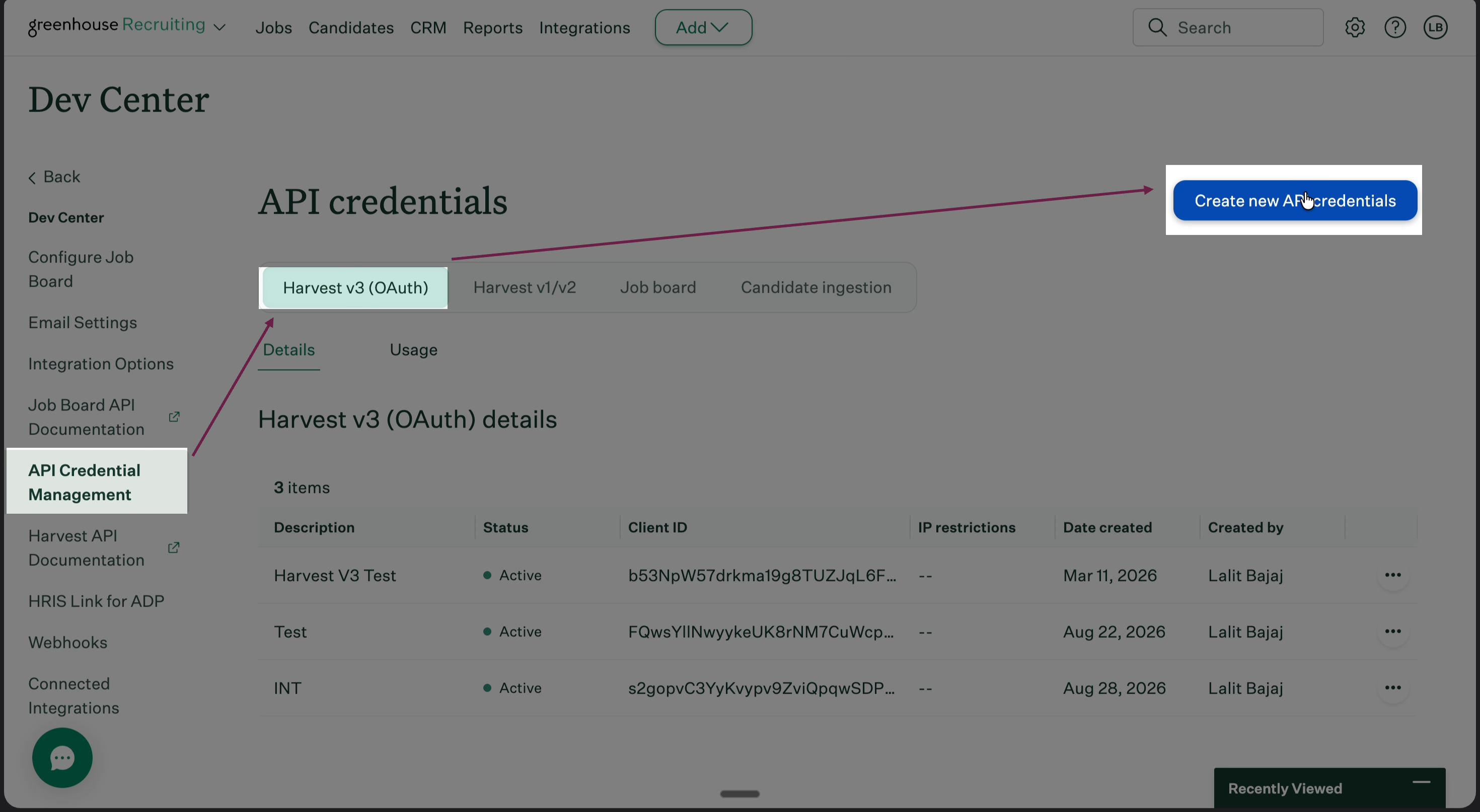
Step 3: Open API Credential Management
Click API Credential Management.
Step 4: Create new API credentials
Under Harvest v3 OAuth, click Create New API Credentials.
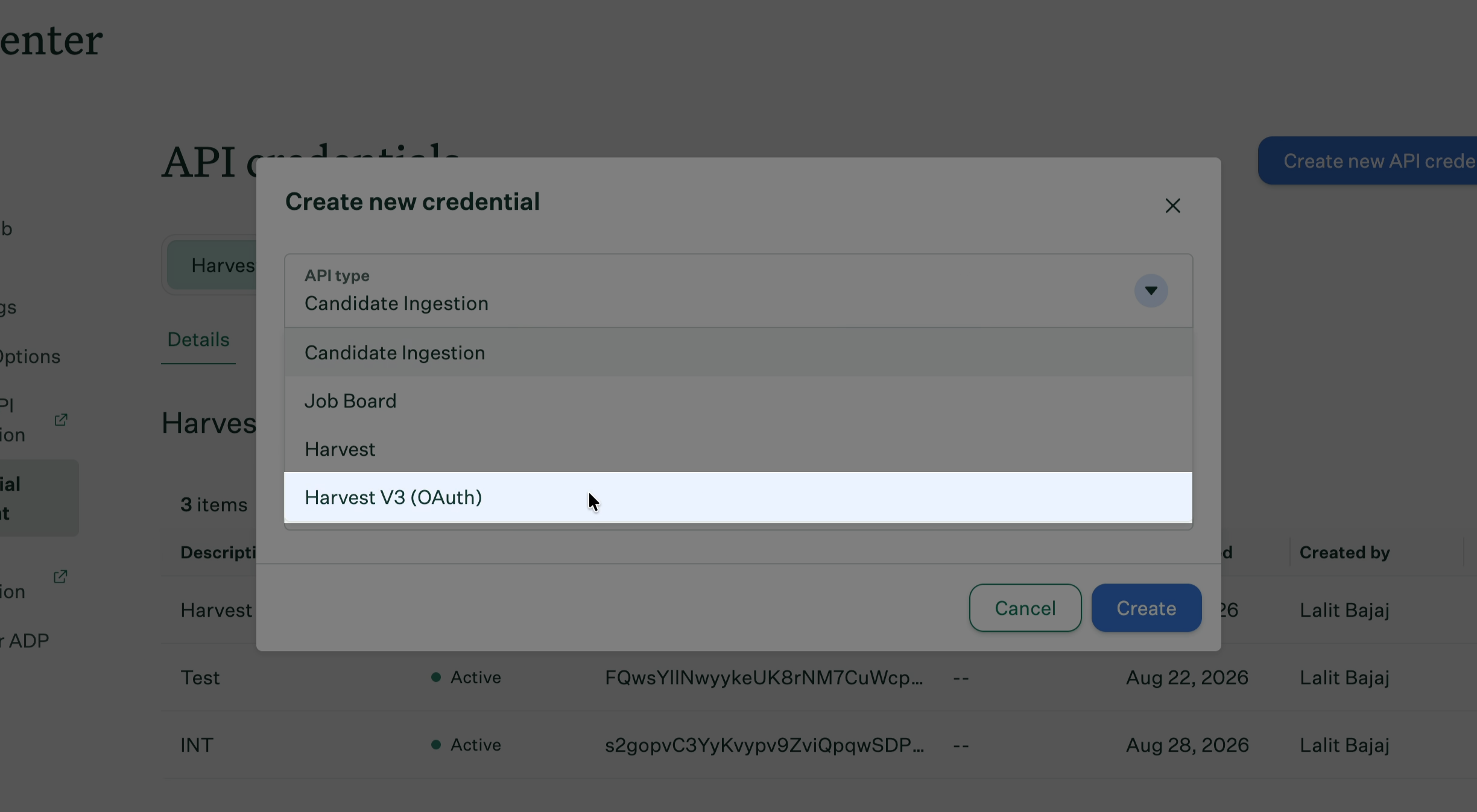
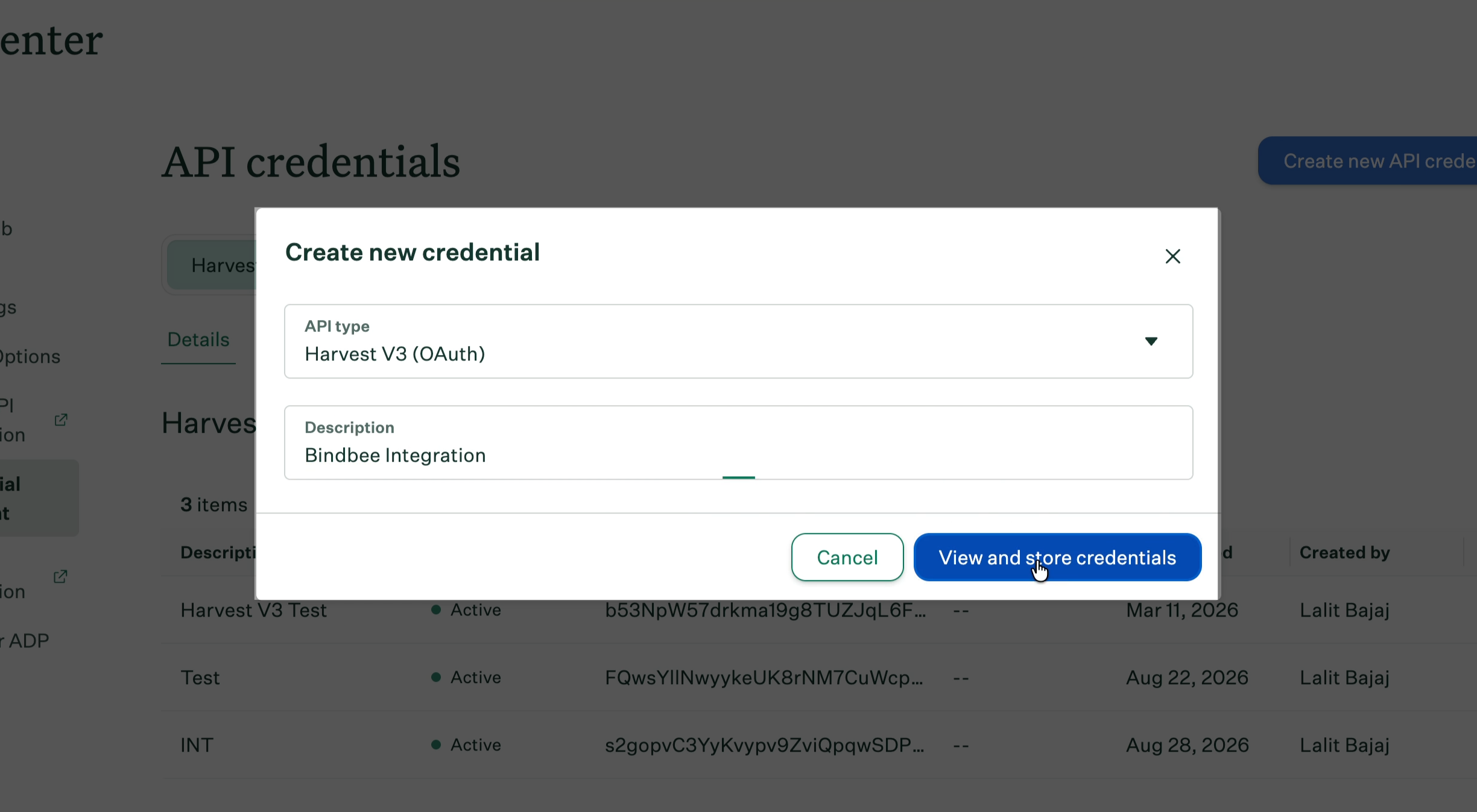
Step 5: Select Harvest v3 OAuth
For API Type, select Harvest v3 OAuth.
Step 6: Add a description
Enter a short description to help identify the credentials later. For example: "Bindbee Integration"
Once done, click View and store credentials.
Step 7: Store the client credentials
Greenhouse will display the generated client credentials.
Copy the Client ID and Client Secret and store them securely. You will need these credentials when completing the Bindbee Magic Link flow.
Once the credentials have been saved, click I have stored the client credentials.
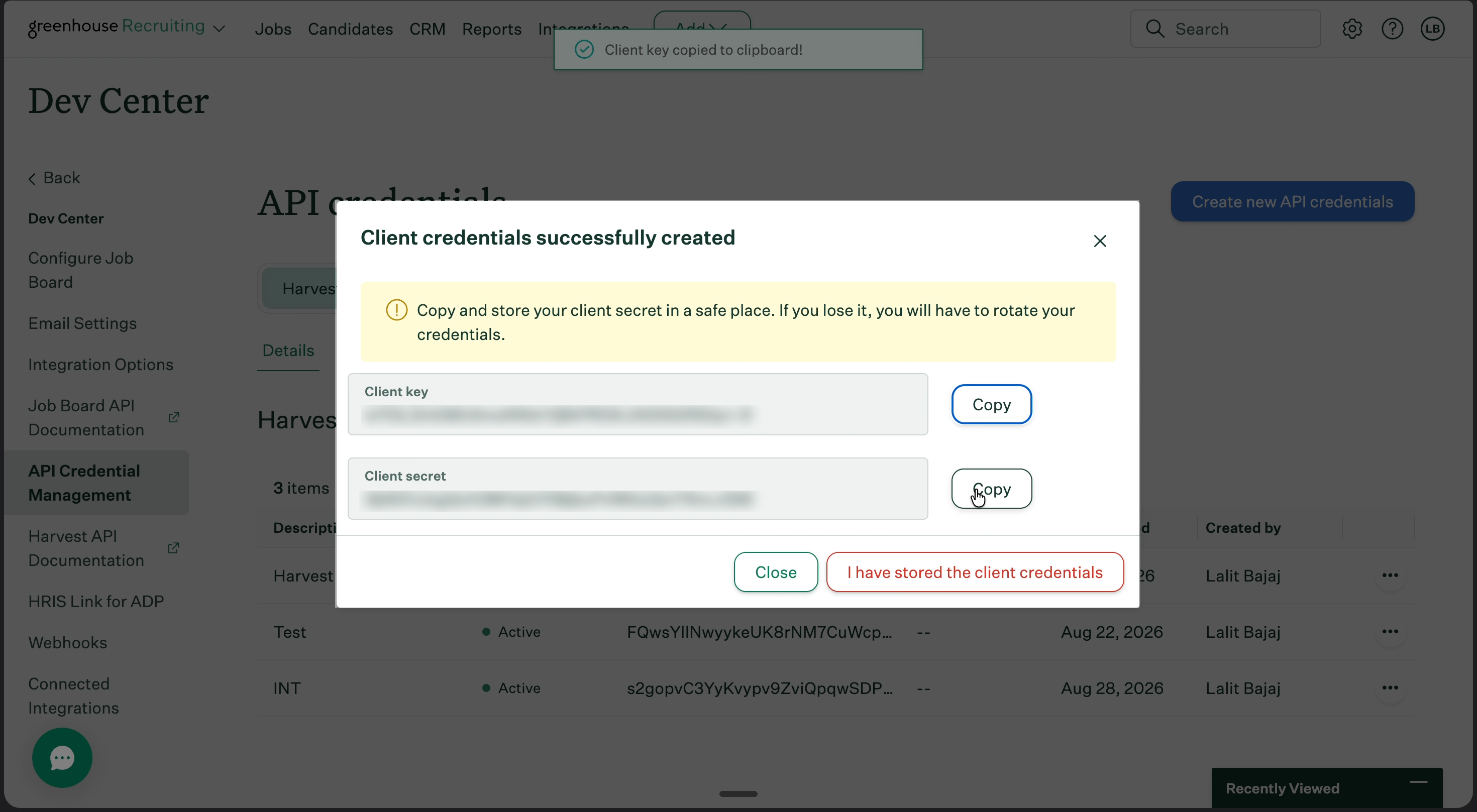
Important: Make sure the Client ID and Client Secret are stored securely before continuing.
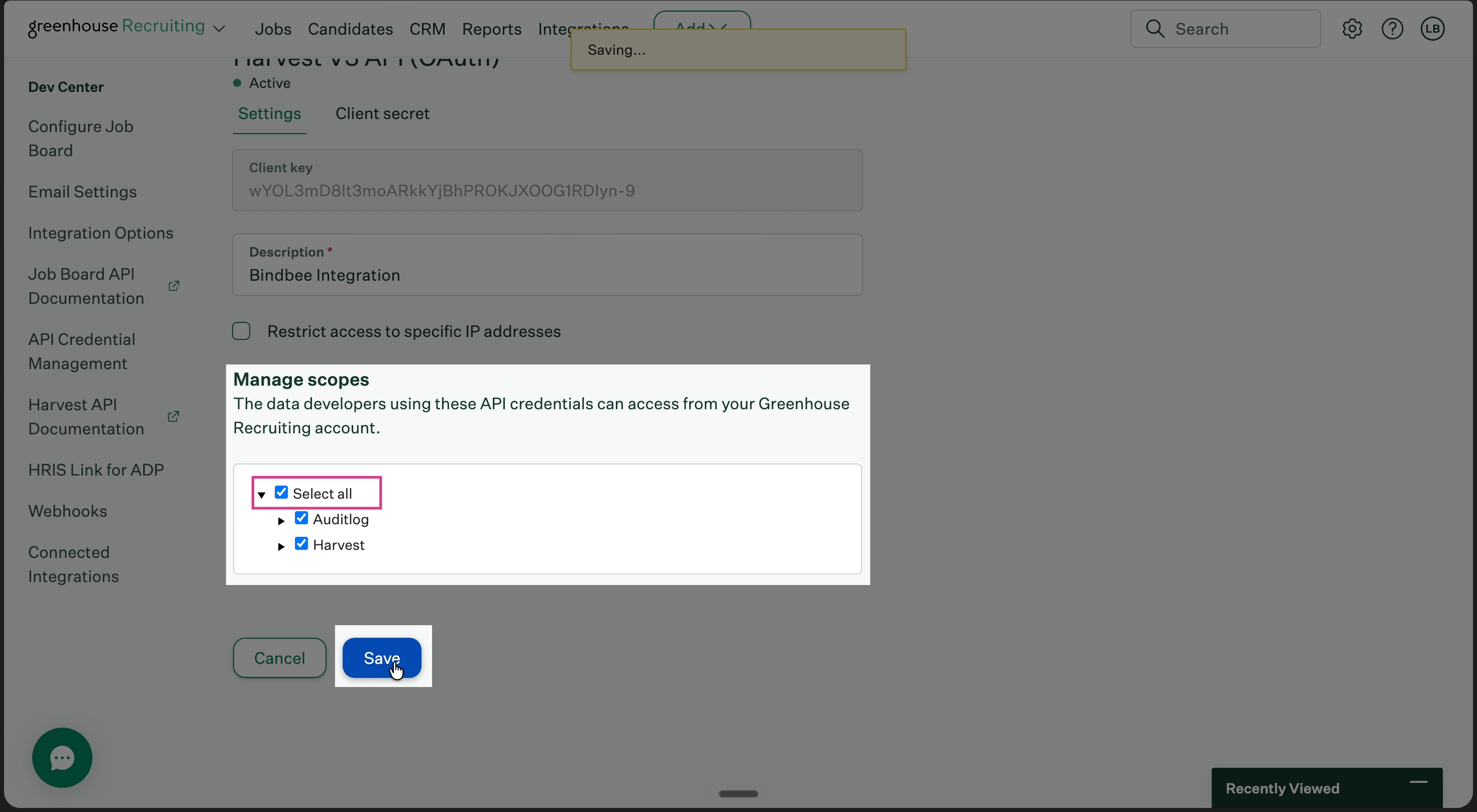
Step 8: Configure scopes
Under Manage scopes, click Select All to enable the permissions required by Bindbee.
Once all scopes are selected, click Save.
Complete the connection in Bindbee
Your Greenhouse Harvest v3 OAuth credentials are now ready.
Return to the Bindbee Magic Link flow and enter the:
Client ID
Client Secret
Once the credentials are verified successfully, the Greenhouse connector will be authenticated using Harvest v3 OAuth and can continue syncing normally.
Need help?
If you run into any issues while migrating your Greenhouse connector, reach out to the Bindbee team through your shared support channel or contact [email protected].