

ADP Workforce Now – How do I connect via SFTP?
Updated 2 weeks ago
ADP Workforce Now - How to Send Data from HRIS via SFTP
Hi there! This guide will walk you through setting up SFTP data transfer from ADP Workforce Now to Bindbee. We've broken it down into simple steps to make the process as smooth as possible. Let's get started! 👋
Overview
SFTP (secure file transfer protocol) provides a secure and private way to send files over the internet. You can generate reports in ADP and setup Automated recurring transfers via SFTP.
We'll cover how to enable it in this guide. We use full files and remove any rows that aren't present in each transfer to ensure data consistency.
Step 1: Create a Custom Report in ADP
First, let's set up the report that will contain your employee data:
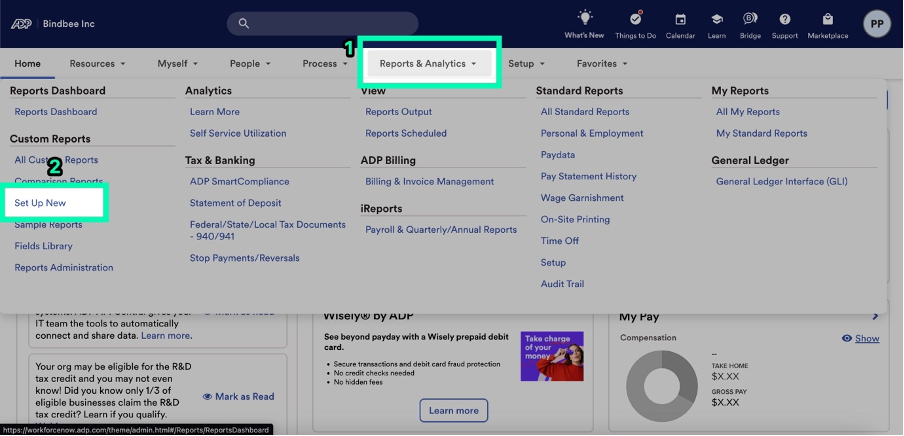
Log into ADP and navigate to Reports & Analytics
Click "Set Up New" under Custom Reports
On the Set Up New Report page, name your report exactly as "Employee_Census.csv"
This specific naming is required for the integration to work correctly.
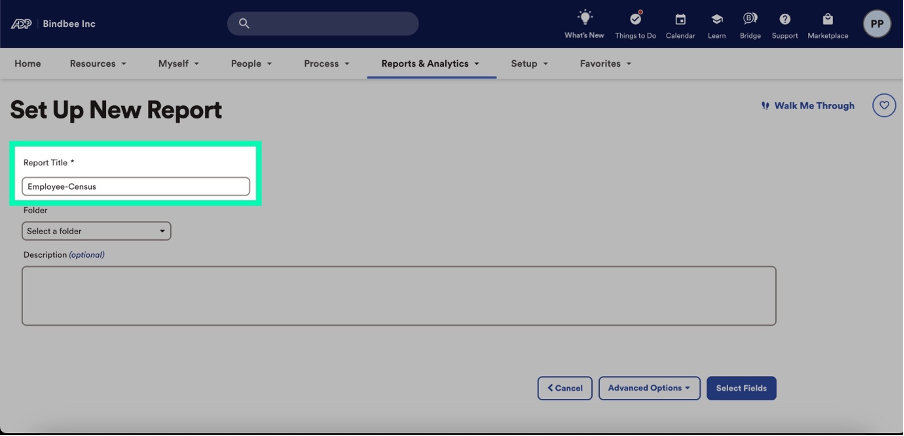
Click "Select Fields" to continue
Step 2: Add Fields to Your Custom Report
You can find all the fields required for your use case in our SFTP Report Template. Please note that the fields must exactly match how they appear in that file.
Now, let's add the necessary data fields:
Search for fields under "ADD FIELDS"
Click the + button to add fields to your report
Required Fields:
ASSOCIATE ID (required for employee syncing)
POSITION ID (required for employment data)
Note: Please use the template provided above and add any fields required for the specific use case.
When you've added all needed fields, click "Save + Run"
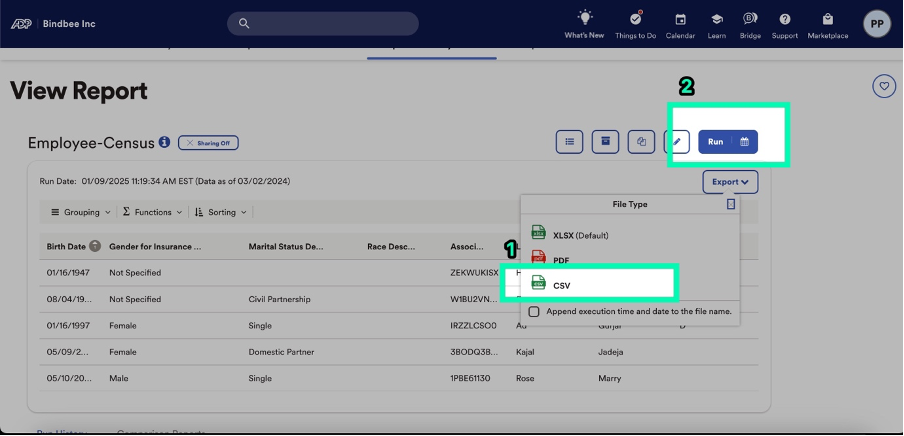
You'll be taken to the View Report screen, where you can export as CSV
Click "Run" to finalize the report
Step 3: Automated & Recurring SFTP Transfer
For automated transfers, you'll need to set up ADP's Automatic Export Service (AES):
Contact your ADP representative to initiate the setup
They'll help you complete a Statement of Work (SOW)
The automation typically takes 3-4 weeks to set up
There is a monthly fee for this service (typically $30-$50/month, but check with your ADP rep for current pricing)
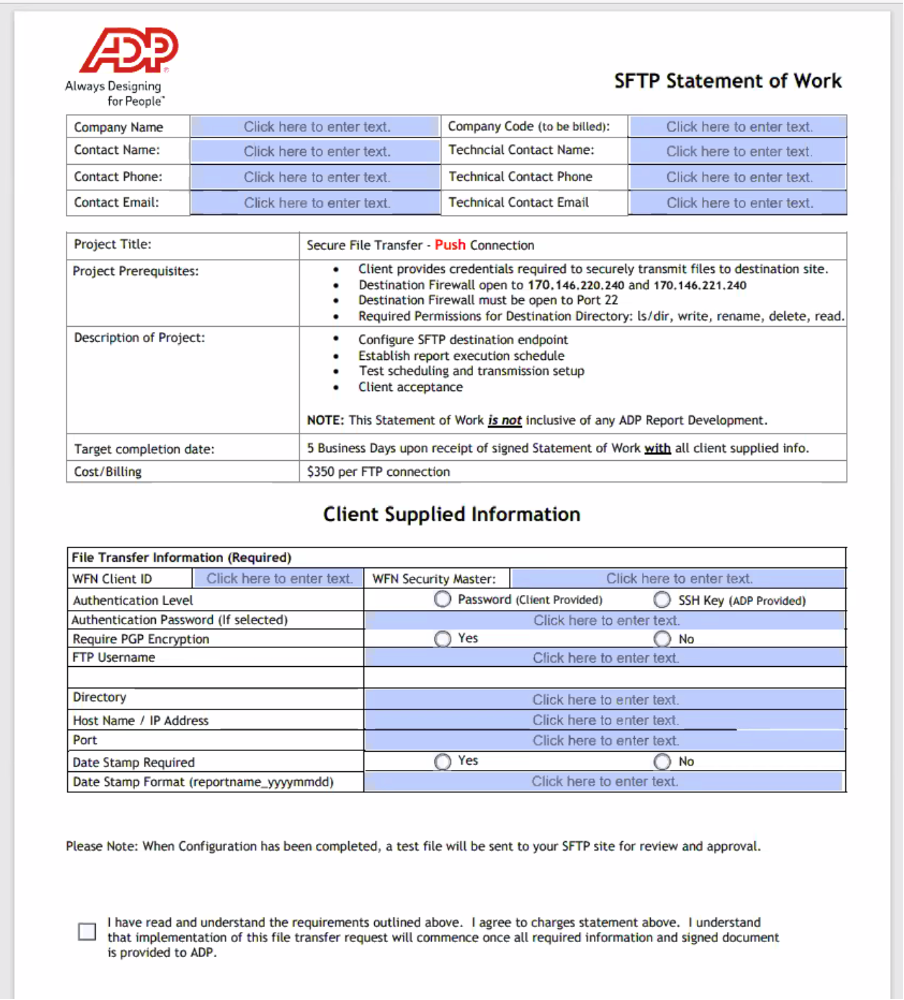
When filling out the SOW, you'll need:
WFN Client ID: Characters after @ in your ADP login
WFN Security Master: Your ADP Admin
Authentication Level: Password
Date Stamp Required: Optional (Recommended Yes)
Required PGP Encryption: No
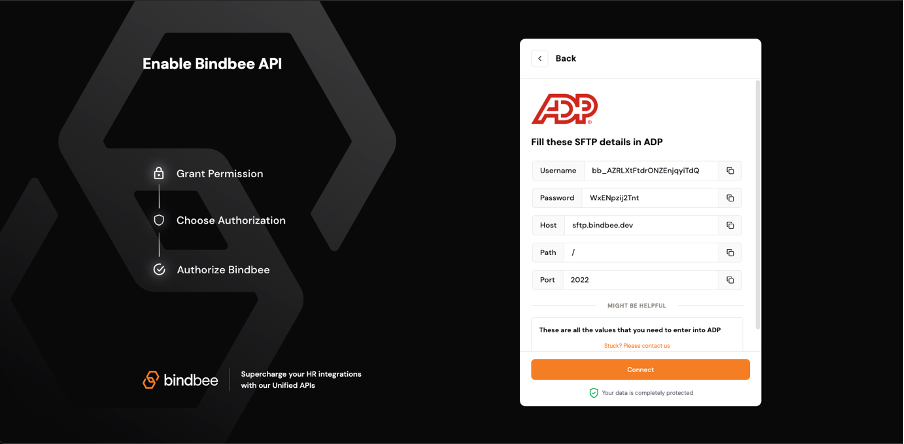
Additional required information will be provided in your Bindbee integration portal:
FTP Username → Username
Authentication Password → Password
Directory → Path
Host Name → Host
Port → Port
Step 4: Scheduling Your Report
Once ADP confirms your SFTP setup:
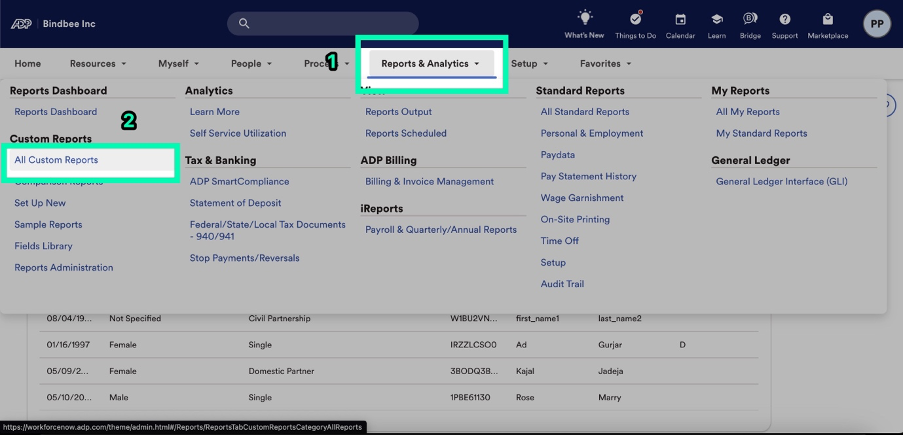
Go to Report & Analytics → All Custom Reports
Find your custom report and open its menu
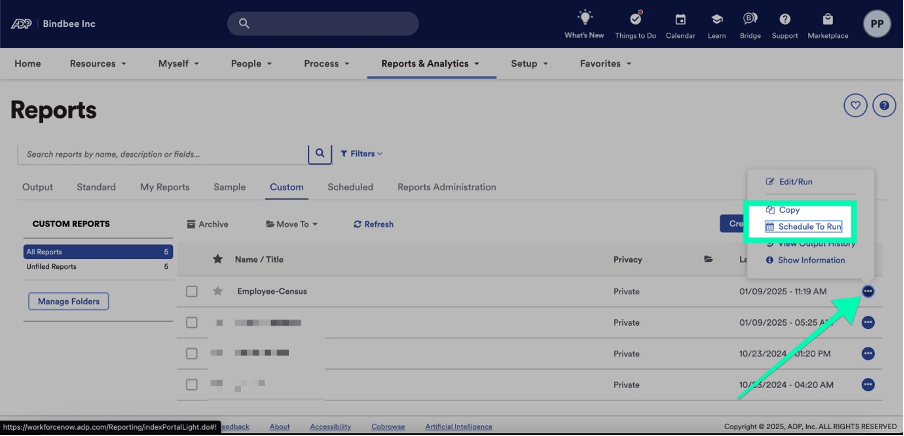
Select "Schedule To Run"
Configure your preferred transfer schedule
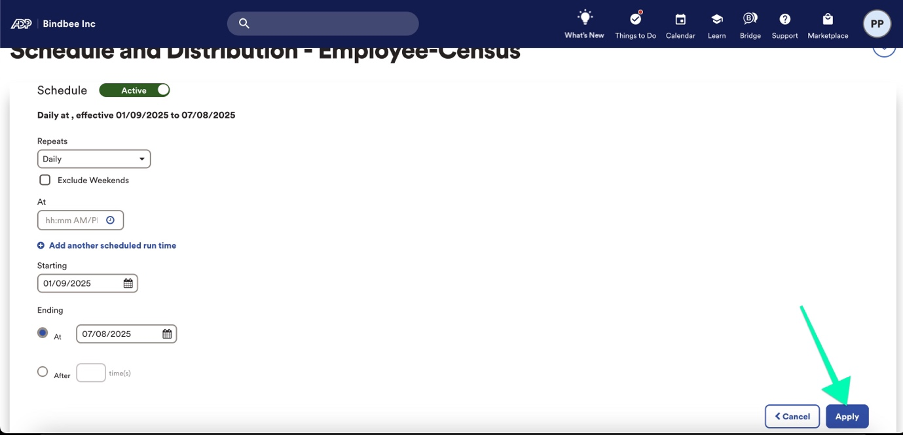
Click "Apply" to save
Final Steps
You will get a confirmation about successful setup from ADP
We'll verify the report format and data transfer
Your data will begin syncing on schedule!
Troubleshooting
If you encounter any issues, please check these common requirements:
Report name must start with Employee_Census, e.g. "Employee_Census123.csv"
The report must include the "ASSOCIATE ID" column
The file must be in CSV format
Need help? Our customer success team is here for you! Contact [email protected] or reach out through your preferred support channel.